
A summary of the Olo Loyalty integration with Bite, including supported features and steps for setup.
Bite

|
Bite is the leading provider of intelligent kiosk solutions for fast-casual and quick-service restaurants as well as convenience stores. Launched Article Last Updated Category |
Integration Summary
What’s supported?
| Feature | Supported | Not Supported |
|---|---|---|
| Ordering Interfaces |
Kiosk
|
Linebuster |
| Olo Loyalty Features |
|
|
| Base Program Types | Points Banking | Shop with Points |
| Basket Level Rewards/Offers Types |
$ Discount (Rebate) % Discount (Discount) Bonus Points |
|
| Item Based Rewards/Offers Types |
|
|
| Viewing/Selecting the available Rewards |
|
|
| Discount code requirement |
|
|
| QR Code | Supports scanning QR code containing 10 digit phone number for | |
| Online and In-Store Ordering Platforms supported by Bite |
Bite supports Kiosk ordering with multiple different ordering platforms. Following are the ordering platforms that both Bite and Olo Loyalty support.
|
|
Things to Know
- No support for guest orders: An order can be completed in the Kiosk without making a loyalty claim by entering the phone number before placing the order. However, such “guest' orders are not sent to Olo Loyalty. Guest orders will not show on Olo Loyalty dashboard and will not be available for accruing points by claiming the order receipt from Loyalty Member Portal.
- Order ID Format: The Bite Kiosk member orders show up with a 12-14 digit numerical ID such as 6818e01f6fa5176220063a8f0 in the Olo Loyalty Dashboard. This is a unique Order ID created by Bite and varies from Merchant to Merchant. This is different from the order ID printed on the POS receipt. It is not possible to know the Order ID printed on the printed receipt from Olo Loyalty Dashboard. The Bite order Id should be looked up in Bite to get the corresponding POS receipt ID.
-
The Member order shows both as a Bite order and a POS order in Dashboard: When the Member places the order from Bite Kiosk Olo Loyalty order processes the loyalty on the order with Kiosk order ID. However it is possible that when the order is received at the POS terminal, it is possible that the POS also sends the order with the POS order ID as a guest order to Olo Loyalty. Some POS systems do not send Kiosk orders to Olo Loyalty but some systems do not. The integration has not been fully tested end-to-end with all Bite+POS combinations so at this time we do not have accurate information on which POS systems send and which POS systems do not. We will update this documentation with POS specific behavior as and when the information becomes available. It is not possible to prevent this duplication from happening either from Bite or Olo Loyalty. The only way to prevent the duplication from happening is if the POS system stops sending the Kiosk order to Olo Loyalty. When this happens
- The order placed from Bite shows up in Olo Loyalty as two orders with a different ID. The Bite order shows as a loyalty order but the POS order shows as a guest order.
- Since the orders are counted twice - this causes over-reporting of sales and orders counts and may impact the offers configured based on the sales or orders count.
- Additional notes about how the order IDs are handled if the Member changes the order after applying the reward: Bite generates an order ID and sends it to Olo Loyalty for loyalty processing when the reward is applied. If the member changes the order after applying the reward or changes the applied reward, Bite voids the order and assigns a different order ID to the cart. So, in the dashboard this will show up as two orders. One with 0 points and the other for the updated order. Please note that even though this does not cause over-reporting of sales it will cause over reporting of orders count in Olo Loyalty Dashboard reports and may impact the offers configured based on the orders count.

- Processing Refunds to a closed order: The refunds on the closed order can be processed from Bite admin portal.
| Action | Loyalty Processing |
|---|---|
| Order is fully refunded |
Loyalty on the order is revered.
|
| Order is partially refunded |
Partial loyalty reversal is not supported in Olo Loyalty. Partial refund is also treated the same way as the full refund. In order to keep the loyalty on the partial refund to be processed correctly, it is recommended to fully refund the order and create a new order with the updated order details. |
- Notes about the order receipt on Olo Loyalty Dashboard
-
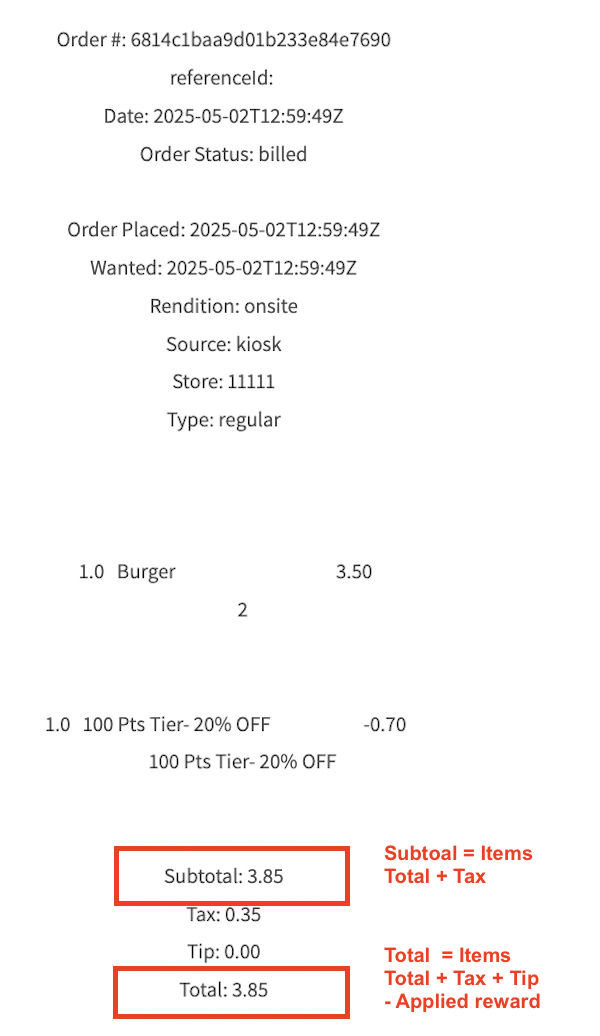
Receipt Subtotal :
- The Subtotal shown on the Dashboard receipt matches with the Subtotal in Bite order.
- Subtotal reflects the sum of line items and tax and not the applied rewards/discounts/coupons and tips.
- Also note that the points accrued on the order does not always match with the subtotal. This is because Olo Loyalty does not compute points based on the receipt subtotal, but based on the sum of prices of items marked as qualifying for points.
- Receipt Total:
The Total shown on the Dashboard receipt matches with the Total on the Brink order. Receipt total reflects the sum of line item prices including modifiers + Tax + Tip minus the applied rewards/discounts.
Integration Setup
Requirements
- The POS system is configured in Production
- Bite account is configured in Production
- Olo Loyalty account is configured in Production
Steps to Enable the Integration
Step 1. Confirm the location(s) is ready for setting up the integration.
| Task Owner | The Merchant |
| Required Input | Identify the locations to enable the Olo Loyalty Integration. |
| Procedure | After the POS, Bite and Olo Loyalty accounts are set up in Production, inform Olo Customer Success Manager (CSM) the list of locations that needs to be enabled and the name of the open $ discount in the POS that needs to be mapped in Kiosk. |
| Data to share | Location list to enable the integration. |
Step 2: Olo Loyalty CSM co-ordinates integration setup activities.
| Task Owner | Olo Loyalty CSM |
| Required Input | Authorization from the Merchant to enable the integration |
| Procedure |
|
| Data to share |
Locations List. Open $ discount configured in the POS system to be mapped in Bite. |
| Outcome |
|
Step 3: Olo Loyalty Integration team shares API credentials with Bite
| Task Owner | Olo Loyalty Integration Team |
| Required Input | Authorization from CSM and the Merchant contact to send the credentials to. |
| Procedure |
If the credentials are already not shared with Bite,
Refer to internal documentation for detailed instructions. |
| Data to share | Refer to internal documentation. |
| Outcome | API credentials mentioned above are shared with the open $discount name and the Olo Loyalty Store Numbers for each location. |
Step 4: Bite enables the integration
| Task Owner | Bite |
| Required Input | API credentials shared by Olo Loyalty Integration team |
| Outcome | Integration Configured |
Step 5: Verify the Integration
| Task Owner | The Merchant |
| Procedure |
After the integration is set up, the quickest way to check if the integration is working is to do the Loyalty Member look up. Please refer to the “Loyalty Member Lookup” in the “Loyalty Flow” section below.
|
Disabling the integration
Step 1. Confirm the location(s) is ready for disabling the integration.
Enlarges the table by opening it in a full screen dialog
| Task Owner | The Merchant |
| Required Input | Identify the locations to disable the Olo Loyalty Integration. |
| Procedure | Inform Olo Customer Success Manager (CSM) the list of locations that needs to be disabled. |
Step 2: Olo Loyalty CSM co-ordinates integration disabling activities.
Enlarges the table by opening it in a full screen dialog
| Task Owner | Olo Loyalty CSM |
| Required Input | Authorization from the Merchant to disable the integration |
| Procedure | Send the instructions to Bite |
| Data to share | Locations list |
| Outcome | Integration disabled at the identified locations. |
Loyalty Flow
Loyalty Member Lookup
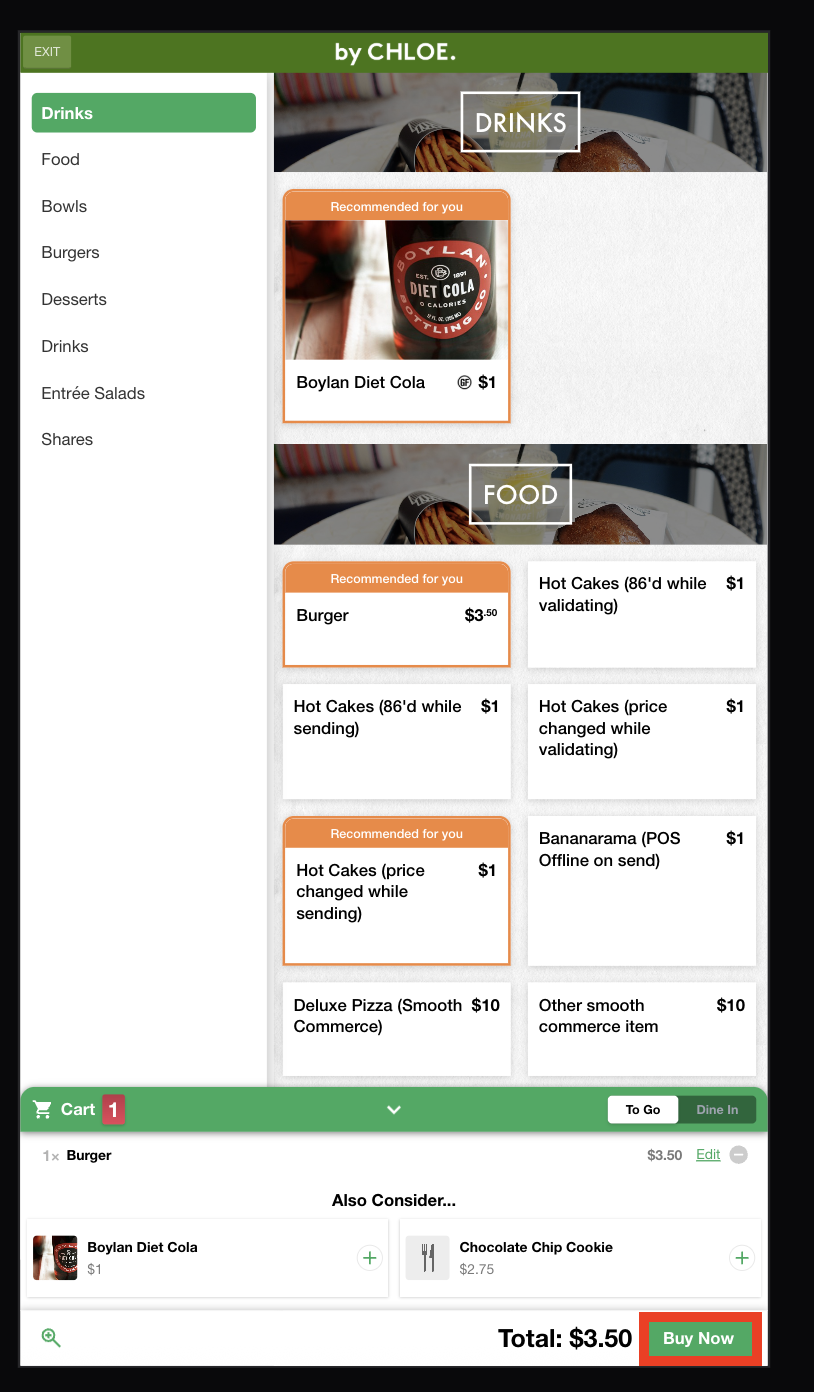
- Create the order on the Kiosk and click on “Buy Now”
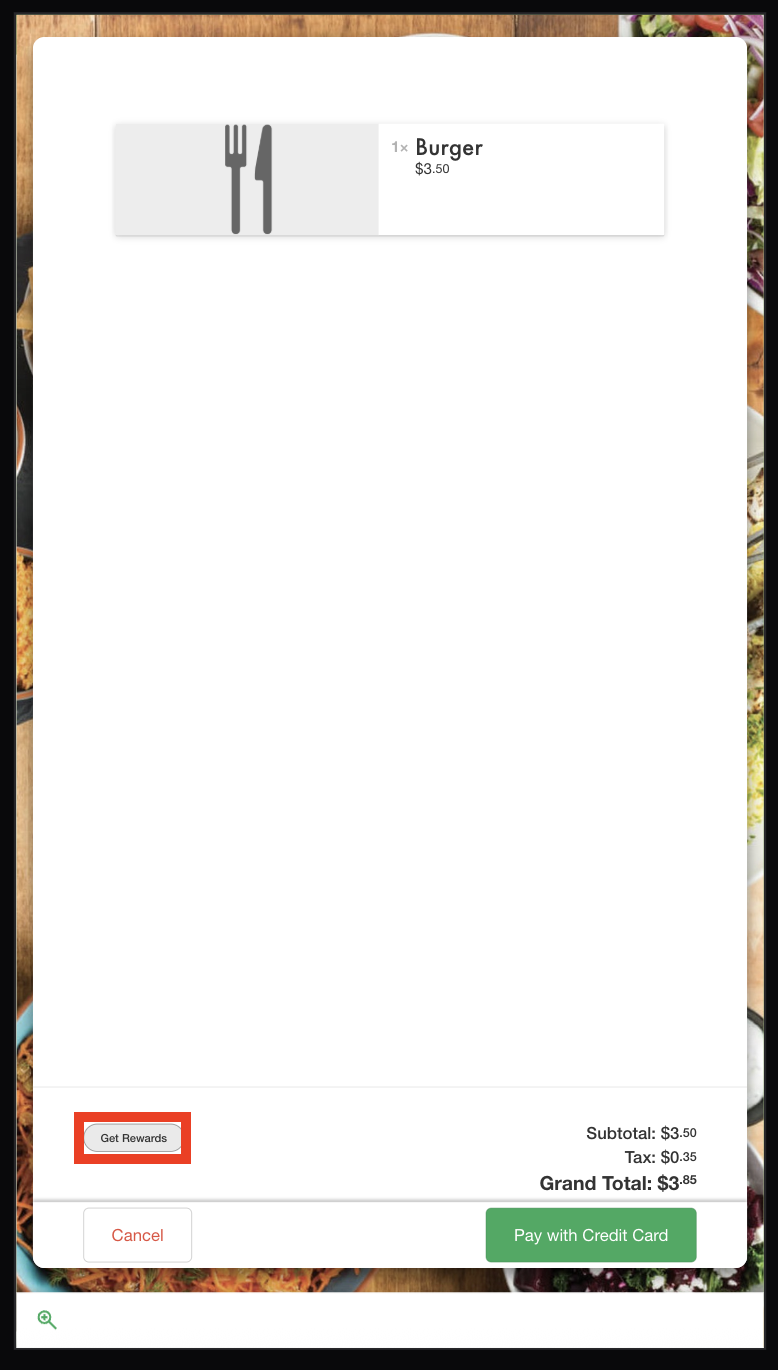
- Select “Get Rewards”
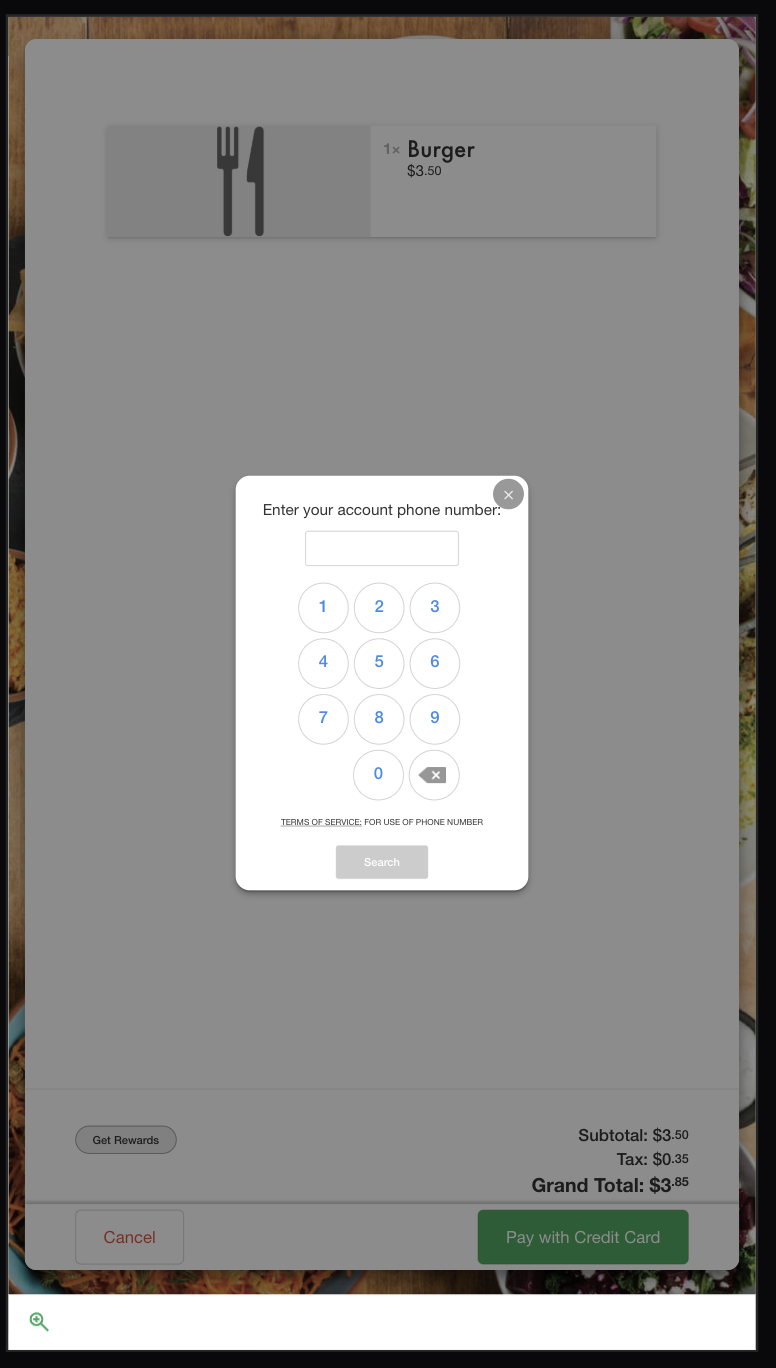
- Enter the 10 digit Phone number to look up the available rewards
- If this an existing Olo Loyalty Member for the Merchant, the Points Balance and the rewards that can be applied to the order is displayed for selection.

If the Member exists in Olo Loyalty and this is the first time the number is looked up for the Brand, then the Member account is linked first and then the balance/rewards are fetched.
If no Member exists in Olo Loyalty, a new “starter” account is created in Olo Loyalty.
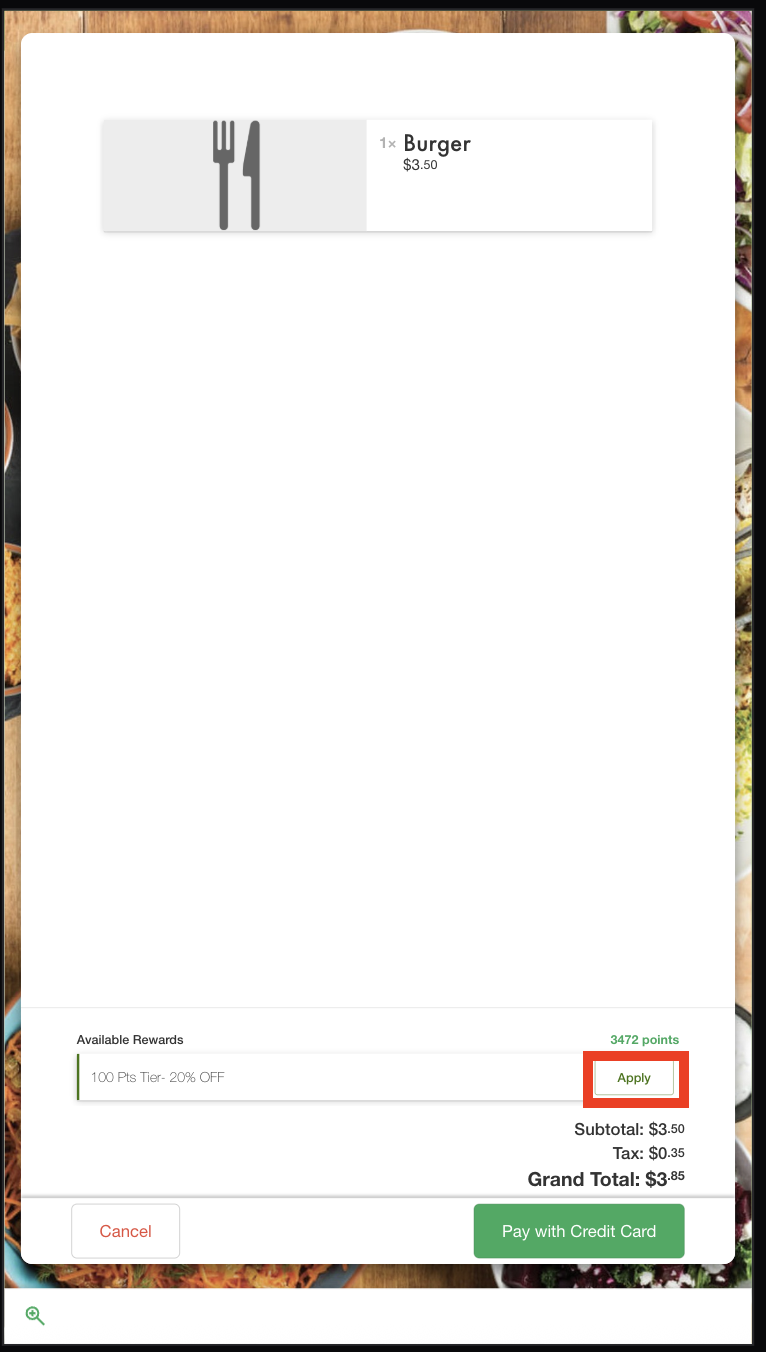
Only the rewards that the order qualifies are shown. It is possible the Member has other rewards available at the store. List of all available rewards can be viewed on the Member Portal.
- If no applicable rewards is available for the order then “No rewards” message is shown.
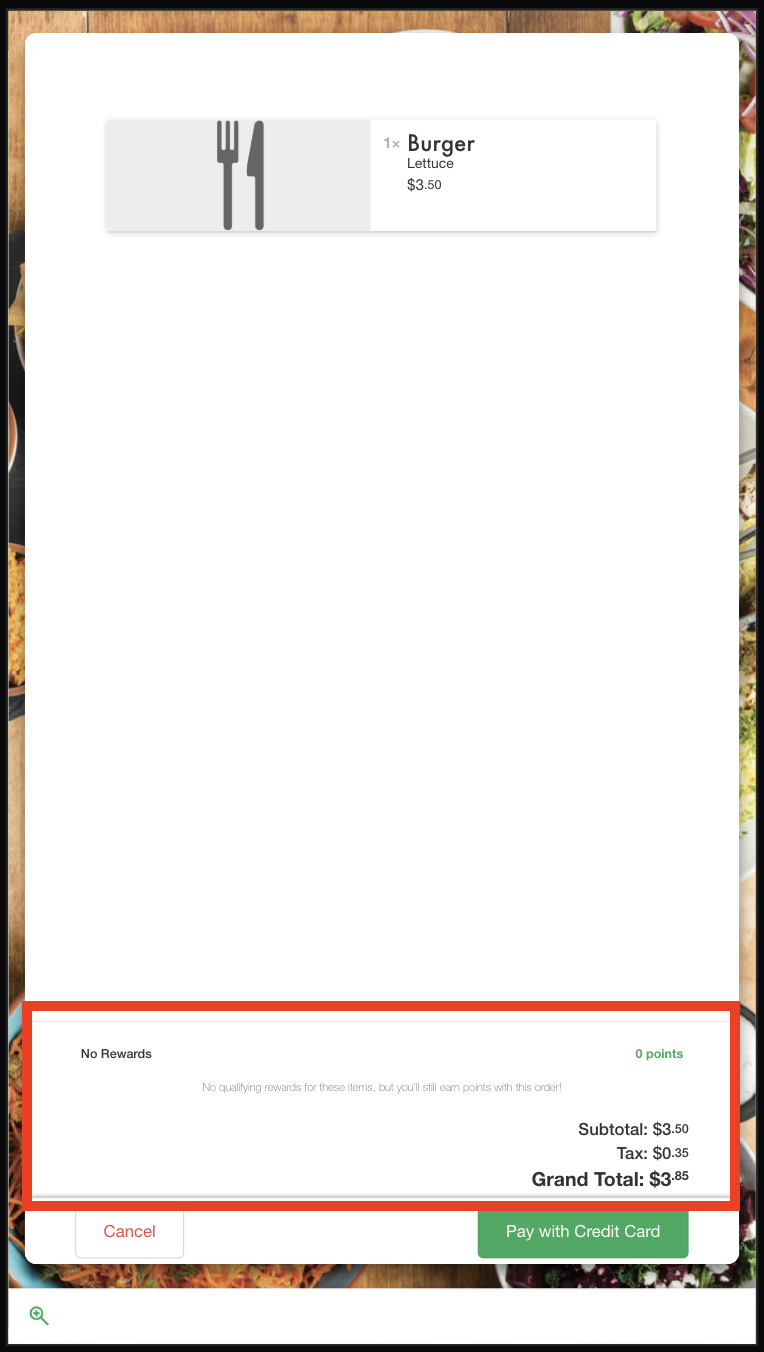
Applying a reward
- After the Member lookup, review the available rewards. If no reward is to be applied click on “Pay with Credit card” and complete the order.
- For applying a reward, click on the “Apply” button next to a listed reward.
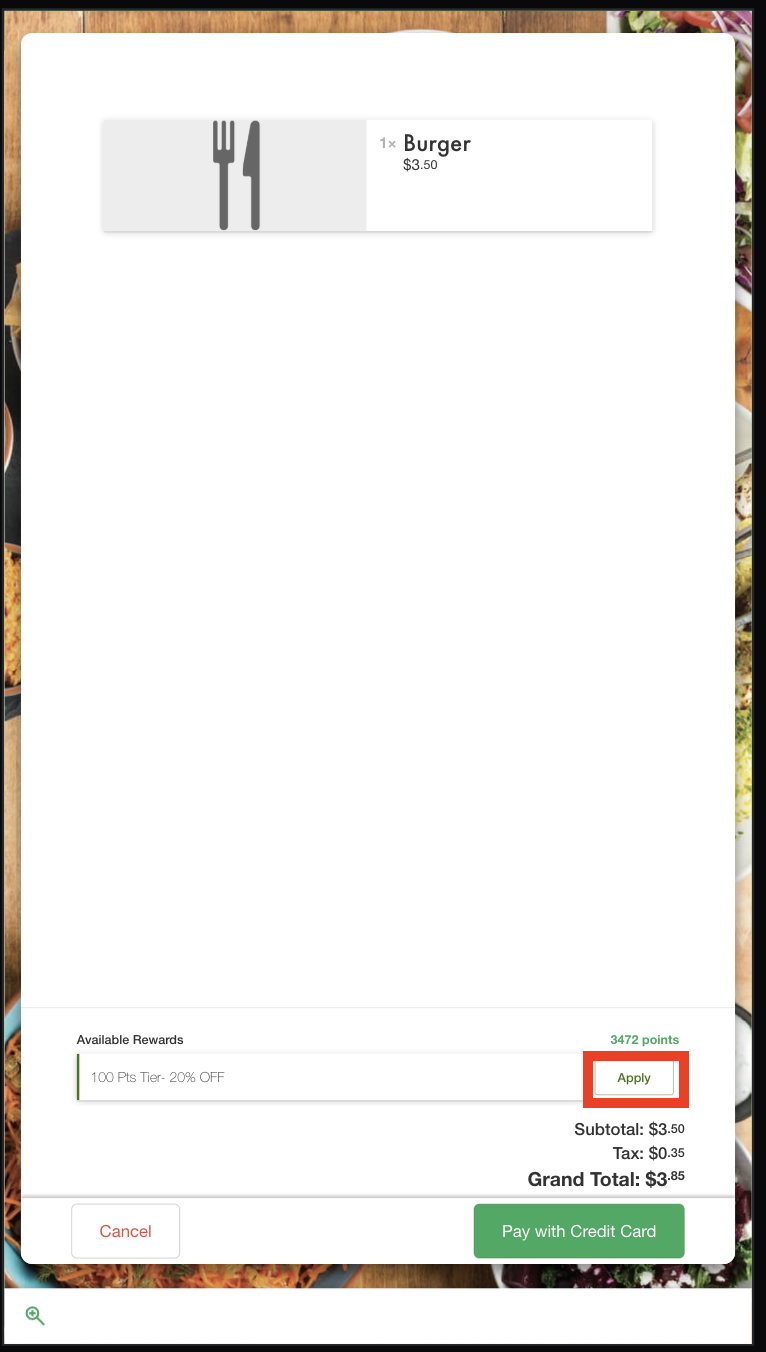
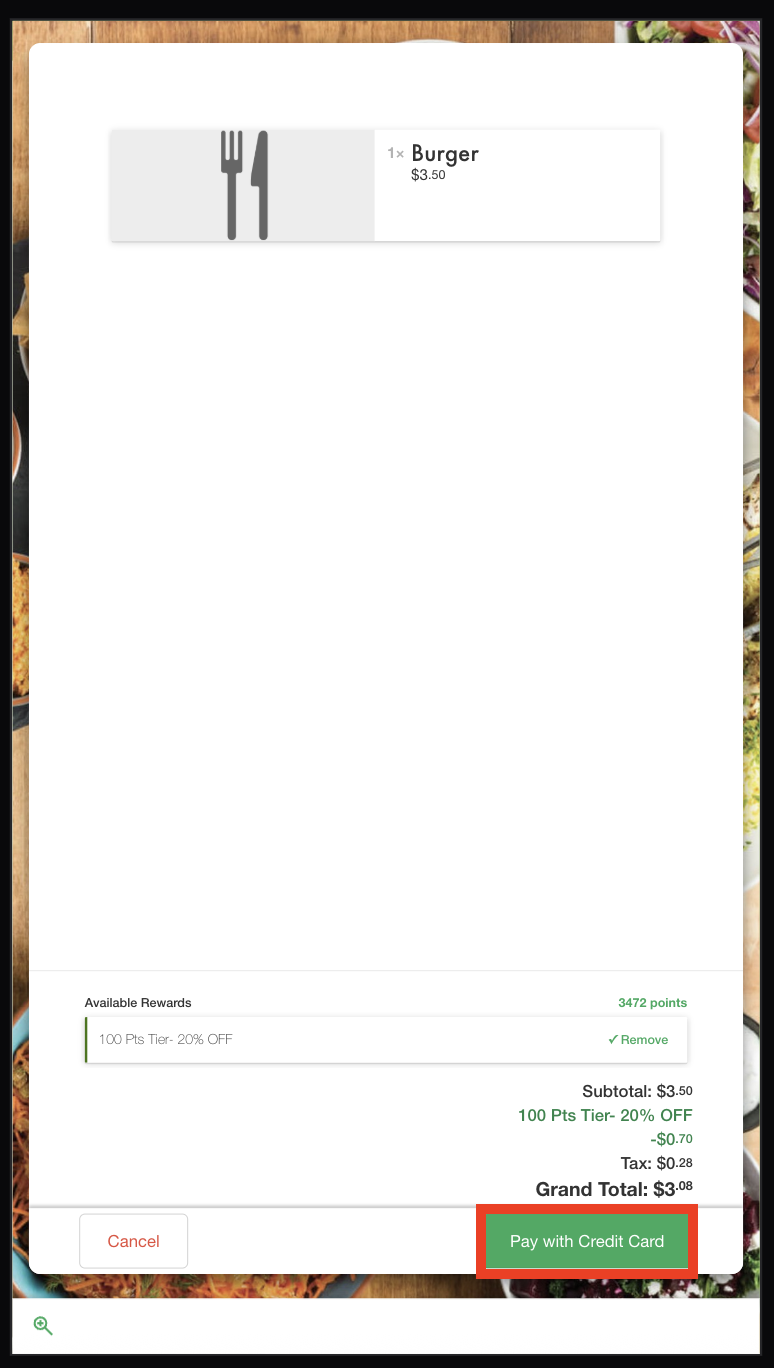
- Reward gets applied and the cart shows with the update after applying the reward. The “Apply” button changes to “Remove” for the applied reward.
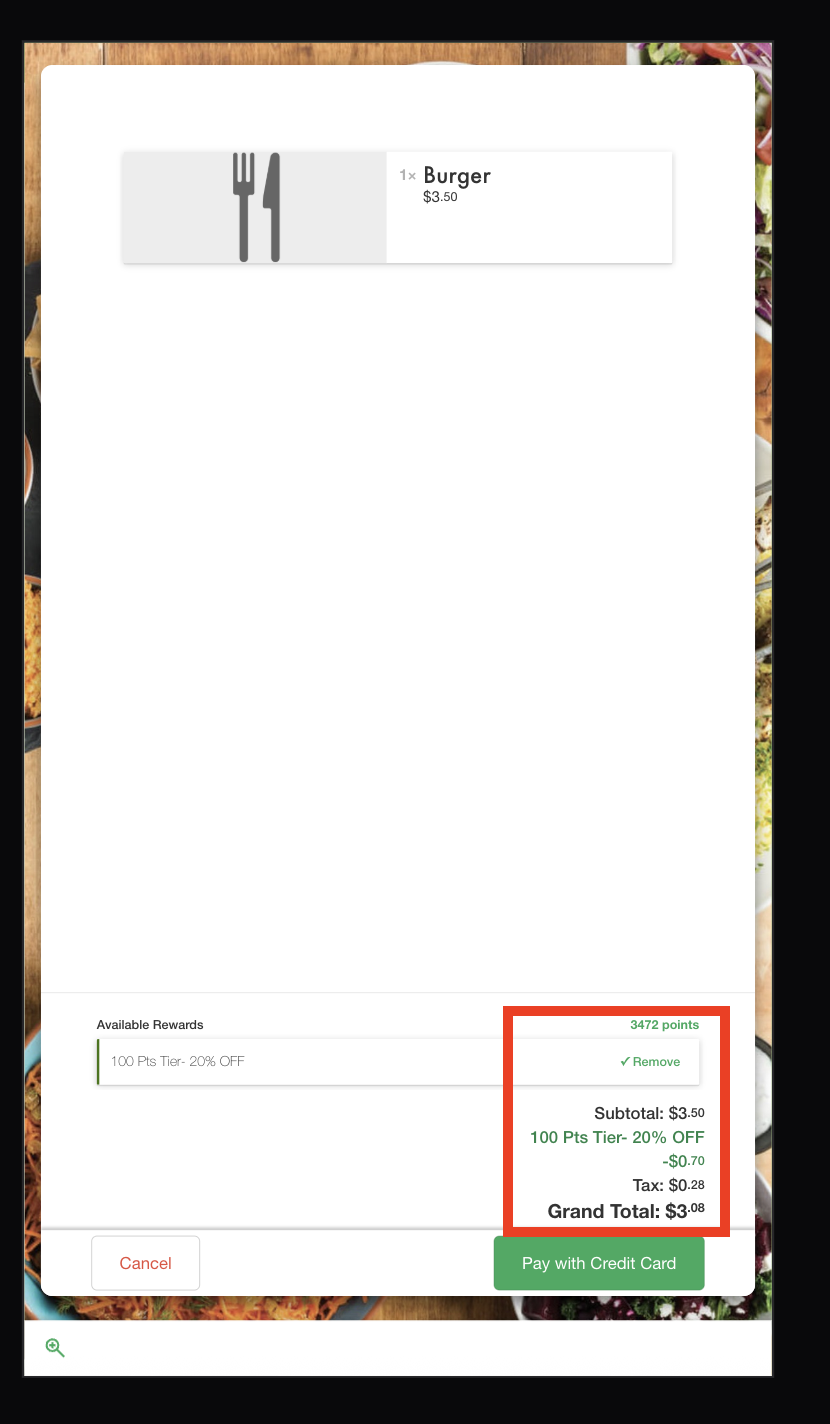
- Click on “Play with Credit Card” to pay and complete the order.
Changing the order after applying the reward
- To remove the reward click on the “Remove” button.
- To change the reward, remove the applied reward and select the other reward.
- If you want to change the order by adding or removing items for the cart, or change the quantity, the applied reward is automatically removed. The updated rewards list based on the updated cart shows for selection.
Refunding the order
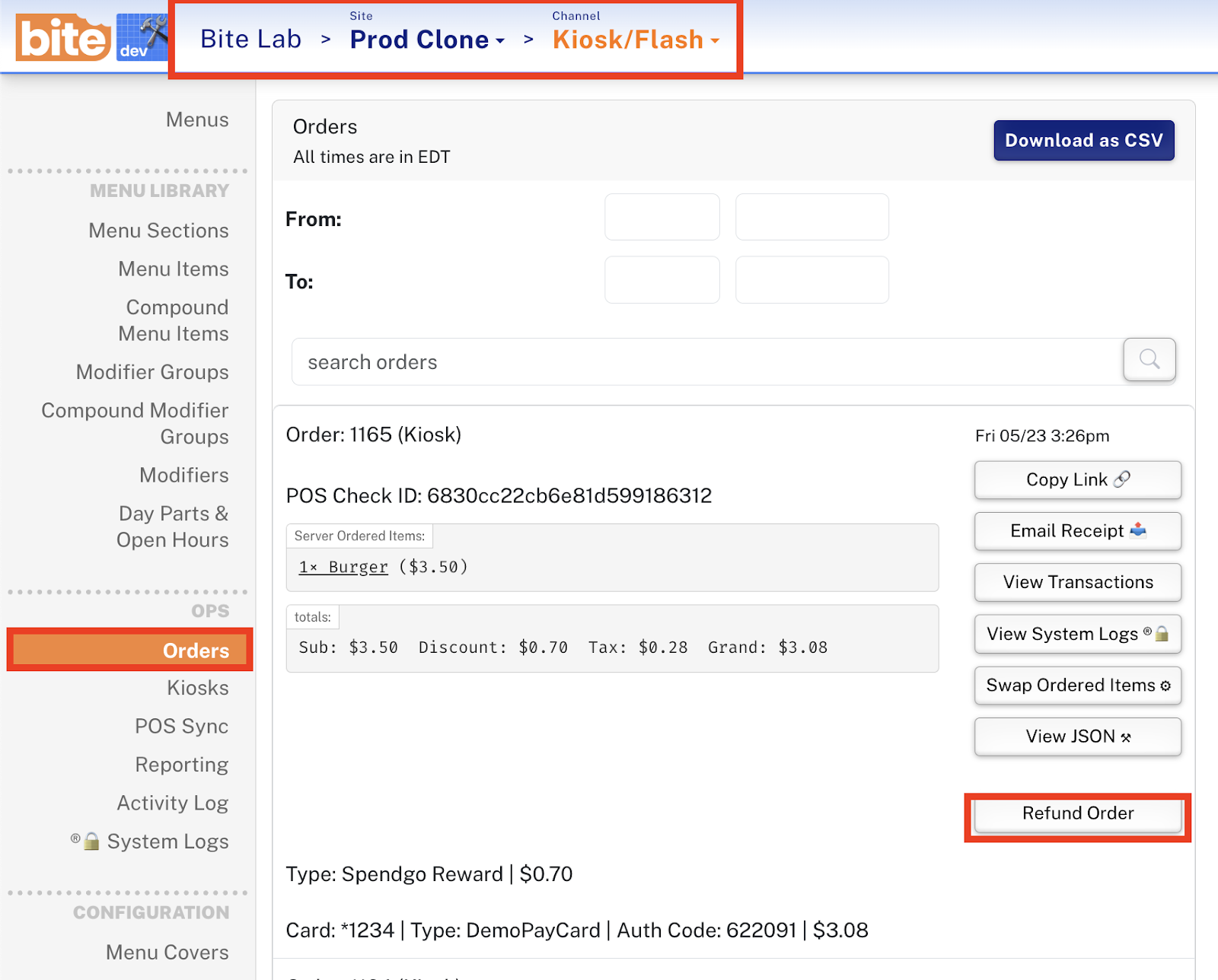
- Navigate to your orders in Bite admin and then choose “refund order”
Comments
0 comments
Article is closed for comments.