
A summary of the Olo Loyalty integration with Focus, including supported features and steps for setup.
About
|

|
Focus, Subsidiary of Shift 4, is a restaurant management software company providing by an all-in-one point of sale system. Launched Article Last Updated Category |
What’s Supported?
Enlarges the table by opening it in a full screen dialog
| Feature | Supported | Not Supported |
| Focus Ordering Channels |
Online Ordering Pay at the Table |
|
| Olo Loyalty Features |
|
|
| Base Program Types |
|
|
| Basket Level Rewards/Offers Types |
|
|
| Item Based Rewards/Offers Types |
|
|
| Online and In-Store Ordering Platforms |
* Focus POS does not allow multiple rewards applied on the same item. Item based Sprendo reward cannot mixed with a non-Olo Loyalty discount on the same item.
Things to Know
-
Support for Voids/Refunds:
- When an order is fully or partially refunded, the points accrued on the order will be canceled and any loyalty rewards applied will be added back to the Member’s account.
- If a partial refund is to be processed, we recommend refunding the entire order and creating a new order.
-
Rewards stacking: Olo Loyalty does not support applying multiple rewards to the order. However non Olo Loyalty rewards can be applied along with Olo Loyalty reward.
- Focus allows only one discount applied to an item, so if the Olo Loyalty and Non-Olo Loyalty reward cannot be applied together if the discount is on the same item.
-
Available rewards shown at the lookup:
- When the cashier looks up the reward, all rewards that are available to the Member at the store location is displayed. This list is not validated against the order, so some rewards such as item specific rewards may not be applicable.
- When the reward is applied, it gets validated against the order and if it is not applicable then an error message is displayed.
- Changing the order/reward after applying the reward: If the order is modified after applying the order, then the applied reward may no more be applicable or the order may qualify for the new reward. However the reward is not automatically revalidated modified order. Rewards needs to be re-looked up and removed/changed if necessary.
-
Discount Code:
- For setting up the Olo Loyalty integration for Focus POS, a discount code needs to be setup in focus. However there is no need to associate this discount code with the Olo Loyalty rewards.
- Additional discount code may need to be setup and associated with Olo Loyalty rewards when a third party online ordering (such as Olo) or in store payment platform (such as Bbot) is integrated with focus.
- Specifically with Olo, the discount code setup in Focus for Olo needs to be also setup as loyalty non qualifying line item in Olo Loyalty. Please refer to Olo Integration documentation for more details.
- Order ID format: The order from Focus POS show up in Dashboard with small 1-4 digit number.

-
Notes about the order receipt on Olo Loyalty Dashboard: Please note that the receipt view of the order in Dashboard may not fully match with the customer receipt generated by Focus.
-
Receipt Subtotal: The Subtotal shown on the Dashboard receipt matches with the Subtotal on the Focus receipt which reflects the sum of line items and not the applied rewards/discounts/coupons.
- The points accrued is not based on the subtotal but based on the sum of the prices of loyalty qualifying items.
- Receipt Total: The Total shown on the Dashboard receipt matches with the Total on the Focus receipt which reflects Subtotal+ Tax + Tip + minus the applied rewards/discounts.
-
Receipt Subtotal: The Subtotal shown on the Dashboard receipt matches with the Subtotal on the Focus receipt which reflects the sum of line items and not the applied rewards/discounts/coupons.
Integration Setup
Requirements
Olo Loyalty Integration is enabled by the Merchant from myFocus. We recommend that if the Focus test lab is available, the integration is enabled and tested at the lab before rolling out to other locations.
- If theFocus POS is being setup new, make sure that POS setup is completed and tested.
- Make sure that the Olo Loyalty account, loyalty program and the rewards are setup.
Integration setup steps
How to Enable the Integration
- Once the POS, Olo Loyalty account, loyalty program and the rewards are setup and integration is ready to be enabled, Olo Customer Success Manager will inform the Olo integration team to share the integration API credentials with the Merchant.
- Olo Loyalty integrations team shares the following details securely with the person designated by the Merchant to enable the integration.
- Client ID (API Key)
- Shared Secret
- Store Codes
- Brand Id (Account Id)
- Merchant sets up the integration from myFocus as follows
Discount Setup: Add a new discount in myFocus.
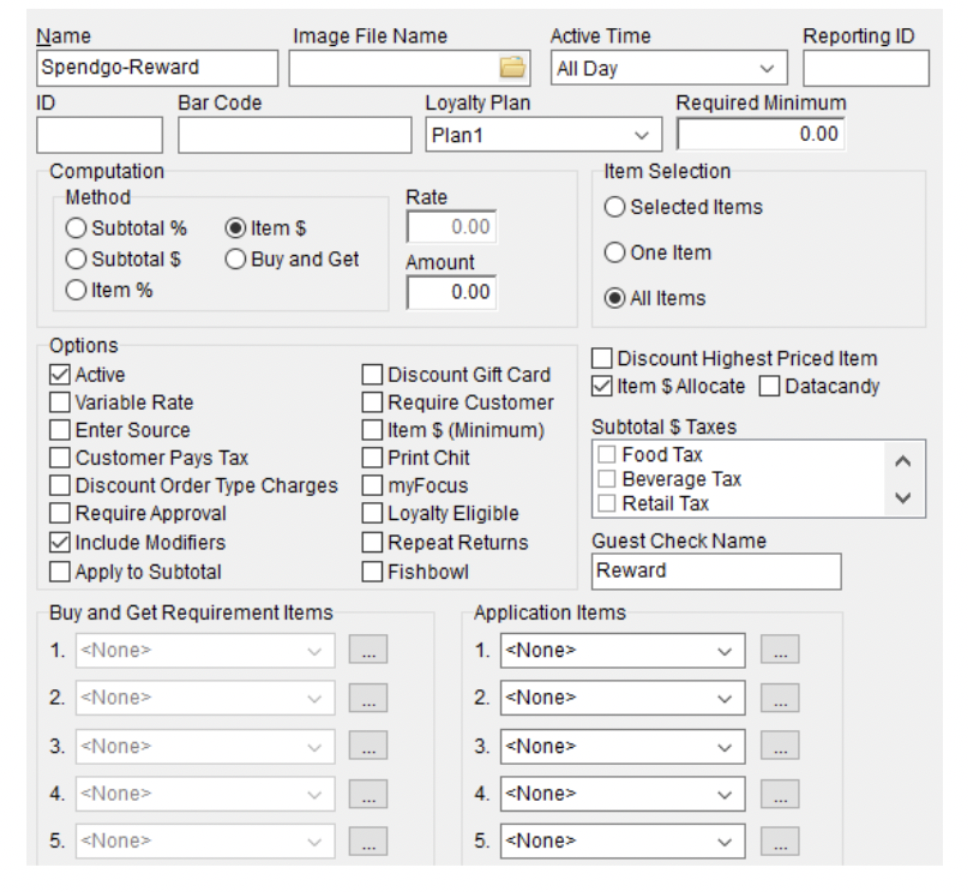
- Name:
- loyalty reward
- Method
- Item $
- Item Selection
- All Items
- In the Options, check the following
- Active
- Include Modifiers
- Item $ Allocate
Package Setup
Place package on any screens you wish to have loyalty accessible
Name: <Enter Desired visible name to staff>
- Command = Olo Loyalty
System Setup
In Setup Navigate to Miscellaneous>Credit/Gift/Loyalty/Customer
- Gift Cards/Loyalty Tab
- Loyalty Options
- Type = Olo Loyalty
- Loyalty Options
- Loyalty Direct Tab
- Client ID = <provided by Olo Loyalty>
- Shared Secret = <provided by Olo Loyalty>
- Store Code = <provided by Olo Loyalty>
- Brand (aka ACCOUNT ID) = <provided by Olo Loyalty>
- Discount
- Map to Olo Loyalty Discount previously created
(Optional) Enabling force prompting for loyalty before payment
This depends on how the button/package and payment canvas is configured. The idea is to trigger Olo Loyalty before calling the payment canvas. Below instruction is provided for reference.
Call Olo Loyalty from All Payments button/package before calling the App Payments canvas containing all the payment options.
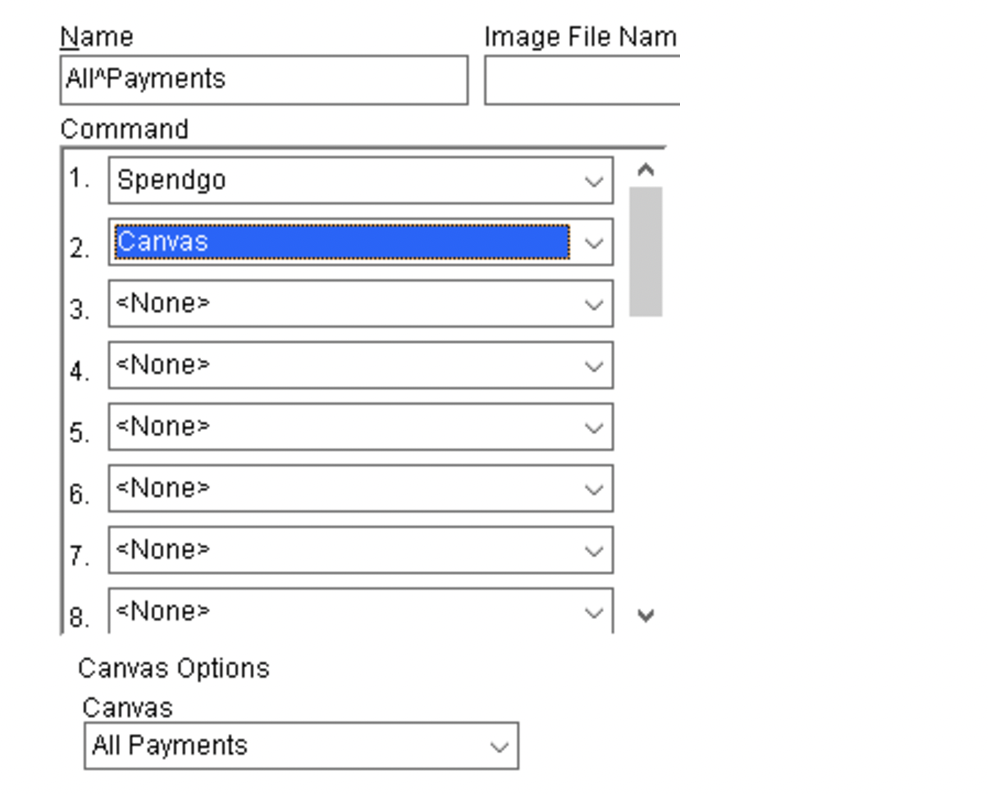
Disable CC Auto Recognize option to ensure they didn’t initiate tendering w/o using the All Payments button/package first.
Loyalty Flow
Loyalty Member Lookup
- Ring Items on Check or retrieve saved check
- Execute the OLO LOYALTY REWARDS package
- Enter Phone # on user lookup screen
- If the Member exists in Olo Loyalty, the available rewards are retrieved and shown
- If the no Member exists matching the Customer Phone number, a new starter account is added in Olo Loyalty. Merchant will have to follow up with the Member to complete the registration process, if necessary.
Applying a reward
- After the Member Lookup, the rewards available to the Member is shown.
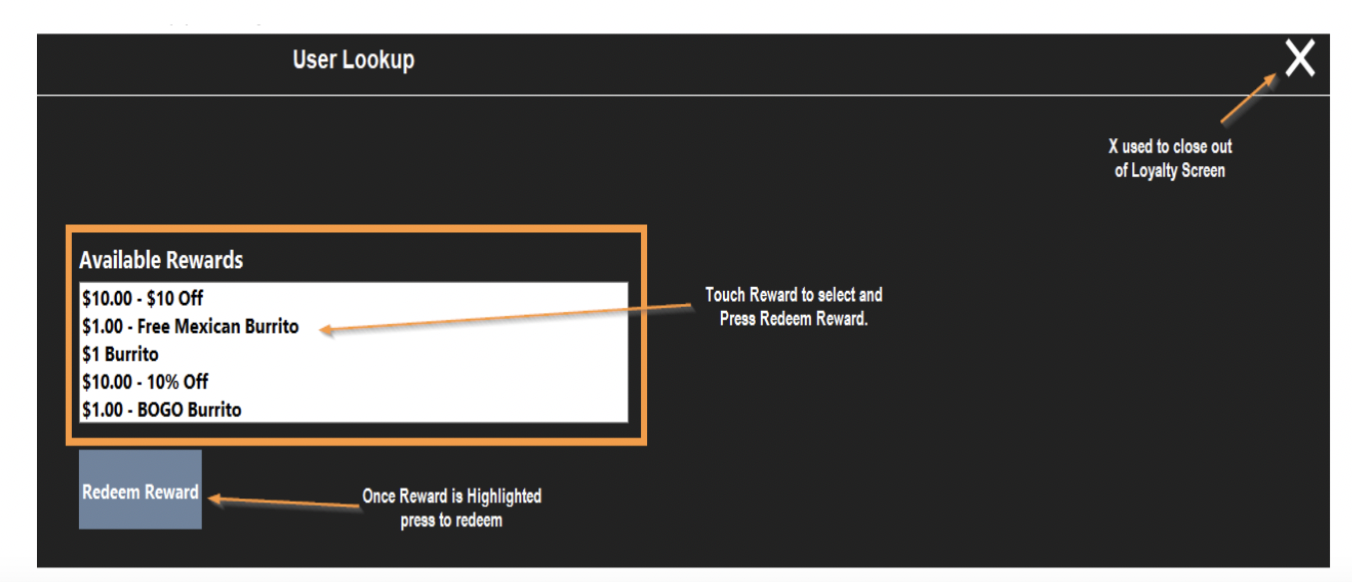
- To Apply a reward, select a reward to apply and click on “Redeem Reward”
- If no reward is to be applied, close the window by clicking on the X at the right corner. The Member is still attached to the order and will accrue points.
- If the reward not applicable, an error message showing why the reward cannot be applied is displayed. The window remains open to allow selection of a different reward.
- If the reward is applicable to the order then the window closes and the order is updated.
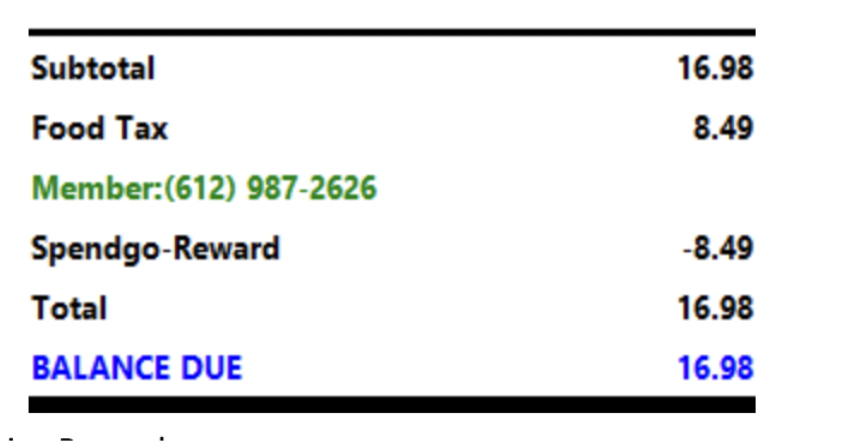
Removing Reward
- Select Reward line below Subtotal
- Press Delete
Removing User
- Select User
- Press Void
Closing Check
- Pay check as normal, when seat is fully paid the loyalty is processed on the order.
- If no loyalty member is attached to the order, then the order is saved in Olo Loyalty as “Guest” order.
Processing Payment Voids/Refunds
When payment is voided any member and loyalty reward will be reversed.
Comments
0 comments
Article is closed for comments.