
A summary of the Olo Loyalty integration with Olo Ordering, including supported features steps for setup.
 |
Olo is a cloud-based restaurant management software company providing digital ordering and delivery platform. Launched Article Last Updated Category |
Integration Summary
What’s supported?
| Olo Ordering Channels |
Online Ordering (Mealtime) Expo Catering Olo Serve App Olo Switchboard |
|
|---|---|---|
| Olo Loyalty Features |
|
|
| Base Program Types | Points Banking, Shop with Points | |
| Basket Level Rewards/Offers Types |
$ Discount (Rebate), % Discount (Discount) Bonus Points |
|
| Item Based Rewards/Offers Types | BOGO, Free Item, $ Discount, % Discount, Bonus Points | |
Things to Know
- Olo Expo missing modifiers: Item based rewards/offers cannot be mapped to a modifier item as they are not sent in the API when integrating with Olo Expo. The price of the modifier will roll up to the parent item increasing its price so that the total points calculation remains accurate.
- Support for multiple instances: Guest orders can only be sent to Olo Loyalty from 1 Olo instance per merchant account. Typically brands will enable guest orders for the “Mealtime” instance targeting regular orders from guests and when configuring a “Catering” instance the brand will not send guest orders to Olo Loyalty via webhook.
- Availability of rewards: When Olo Loyalty is integrated with Olo, Olo login happens through Loyalty Single Sign On. The rewards are fetched and cached at login. The rewards earned while logged in will not appear in the available rewards list in Olo until the next login.
-
Item based rewards:
- When setting up Qualifying Items group in Olo Loyalty for the Item based rewards, make sure that the Items names in the Group matches with both the item names maintained in Olo and the POS Vendors as they may be different.
- Specifically for the NCR Silver Pro POS systems, when configuring the qualifying items in Olo Loyalty, if the item names in NCR is more than 20 characters long, truncate the name to first 20 characters and add it to the list.
- When setting up Qualifying Items group in Olo Loyalty for the Item based rewards, make sure that the Items names in the Group matches with both the item names maintained in Olo and the POS Vendors as they may be different.
-
Setting up Minimum Purchase amount for the reward
- When Olo is integrated with Focus POS, the ExcludeDiscountItemFromLPO in setting need to be set to true in Olo. This is the default setting when Olo is enabling the Olo Loyalty integration. If this is not set, Olo orders come into Olo Loyalty with a extra line item (with a negative amount) for the applied discount and it impacts in a different ways. If any of the below issues are happening with the Focus integration, submit a request with Olo Support to enable ExcludeDiscountItemFromLPO setting.
- Points accrual on the orders that has a Olo Loyalty reward applied will be incorrect.
- Olo Loyalty reward with a % discounts do not work
- If the Olo Loyalty reward require with a minimum qualifying purchase, the purchase amount qualification logic will not work correctly.
- When Olo is integrated with Focus POS, the ExcludeDiscountItemFromLPO in setting need to be set to true in Olo. This is the default setting when Olo is enabling the Olo Loyalty integration. If this is not set, Olo orders come into Olo Loyalty with a extra line item (with a negative amount) for the applied discount and it impacts in a different ways. If any of the below issues are happening with the Focus integration, submit a request with Olo Support to enable ExcludeDiscountItemFromLPO setting.
-
Olo Switchboard for loyalty transactions
-
To earn loyalty points through Olo Switchboard, guests must initially log into their Olo Loyalty account at least once within the Olo platform (typically via an Olo integrated app or Ordering website). After this first-time login, no additional sign-ins are required for subsequent Switchboard orders to qualify for points. If your setup includes separate Olo instances for Catering and Mealtime, guests must log into their Olo Loyalty accounts individually through each instance to ensure they can earn points on orders placed in either platform.
During phone orders placed through Switchboard, loyalty offers remain fully accessible. Guests simply need to inform the representative about any available offer they'd like applied. All Switchboard orders are handled identically to standard online orders placed through an Olo integrated digital interface.
-
-
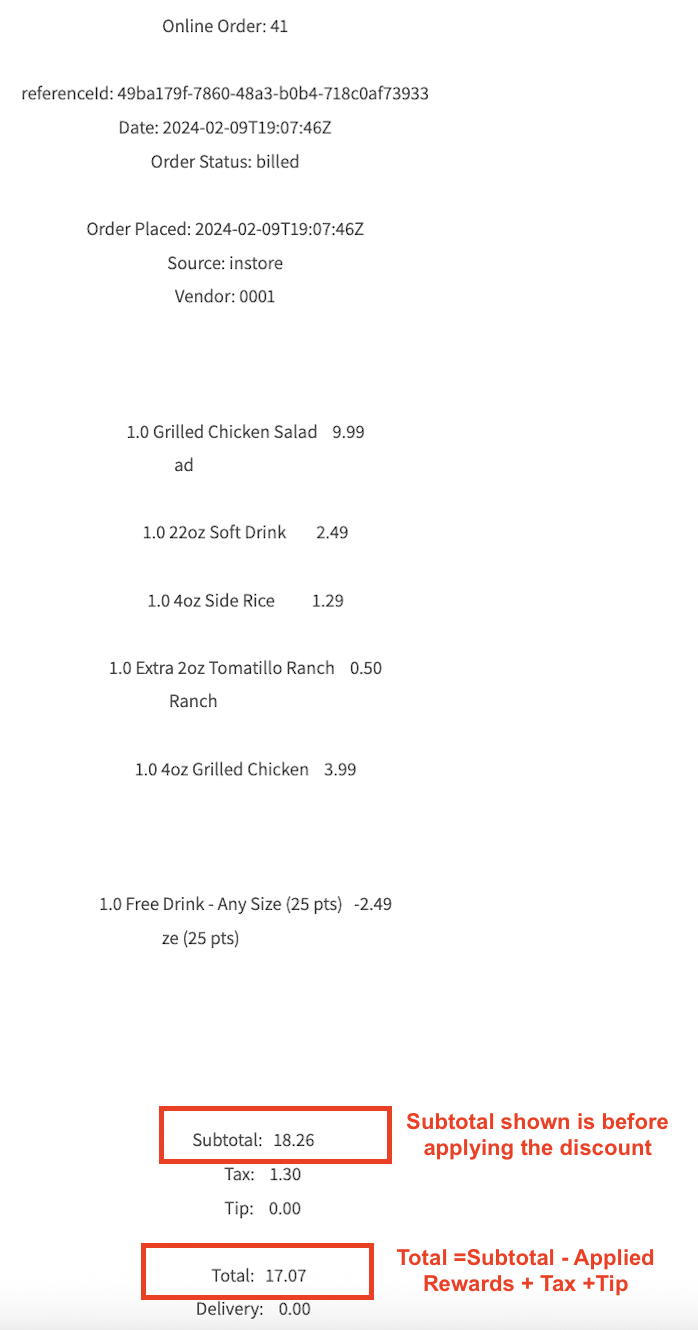
Order receipts shown in Dashboard
- When looking up the orders in the dashboard, you can identify the Olo Orders by the Order Ids formats such as 24554313361358848 (17 digit number starting with 2)

- The Subtotal reflects the Order Subtotal before applying the reward.
Integration Setup
Requirements
- If Olo Sandbox account is available, Olo Loyalty recommends that the integration is setup in the Sandbox before configuring in Production. If a brand is not yet live with Olo you can immediately set up in production to save time.
- Make sure that the Olo Loyalty Account and the rewards are configured. The Olo Customer Success Manager will inform when the account and rewards setup is completed.
-
Discount Code Setup requirements: Olo’s integration with the POS may require a discount code to setup in the POS system and associated with Olo. The Olo Loyalty rewards will have to be associated with this discount code. Please refer to Olo’s support team and help guides for configuring discounts in your particular POS and providing Olo Loyalty with the Discount Code to use.
-
Toast: Toast discounts display in the Toast admin with a discount code not the GUID. When the discount is opened for editing the URL contains the discount GUID. It is the GUID not the discount code that we needs to be configured in Olo Loyalty for the integration to work. Refer to the screenshot below how the Toast URL shows the discount GUID. When asked share this discount code your Olo Customer Success Manager during the Spendgo loyalty setup. Please refer to Olo’s documentation.

-
Toast: Toast discounts display in the Toast admin with a discount code not the GUID. When the discount is opened for editing the URL contains the discount GUID. It is the GUID not the discount code that we needs to be configured in Olo Loyalty for the integration to work. Refer to the screenshot below how the Toast URL shows the discount GUID. When asked share this discount code your Olo Customer Success Manager during the Spendgo loyalty setup. Please refer to Olo’s documentation.
- Focus: When the Olo is integrated with Focus POS, the ExcludeDiscountItemFromLPO setting in Olo needs to be set to “true” and published.
-
Discount Code Setup requirements: Olo’s integration with the POS may require a discount code to setup in the POS system and associated with Olo. The Olo Loyalty rewards will have to be associated with this discount code. Please refer to Olo’s support team and help guides for configuring discounts in your particular POS and providing Olo Loyalty with the Discount Code to use.
To Enable the integration
- If the Olo Sandbox environment is available,
- Once Olo Loyalty completes the Account setup and Brand is ready to enable the integration, Olo integration team sends the Olo Loyalty Sandbox API and oAuth credentials with Olo. After the Olo Loyalty oAuth is setup, the user logs into Olo using the Olo Loyalty sign up/Sign in page.
- Olo sets up the oAuth and the API Integration for processing the Loyalty Member transactions.
- Olo shares with the Brand steps for setting up the Webhooks from the Olo Admin portal for sending the guest order details to Olo Loyalty.
- Brand configures the Webhooks and share the generate Secret with Olo integration team
- Olo integration team configures the secret in Olo Loyalty.
- Brand runs the following test orders
- Place an order without logging in (guest order).
- Login and place an order without applying a reward.
- Place an order each with different available rewards.
- If there are some additional tests need to be run, the Olo Customer Success Manager will send the list of test cases to run.
- Inform the Olo Customer Success Manager that the tests orders have been placed.
- Olo Loyalty verifies the orders and confirms that everything is working fine.
- If the Sandbox testing is complete or of there is no Sandbox environment available, the Olo integration team will share the Production API and oAuth credentials with Olo. Same steps listed above needs to repeated in the Production environment.
- If Olo Test Lab is available, Olo enables the integration at the Lab first.
- After the orders from the Lab are verified, then Olo enables the integration for other liver locations.
To Disable the integration
- Olo disables the oAuth and API integrations.
- Brand disables the configured Webhooks.
Loyalty Flow
Member Login
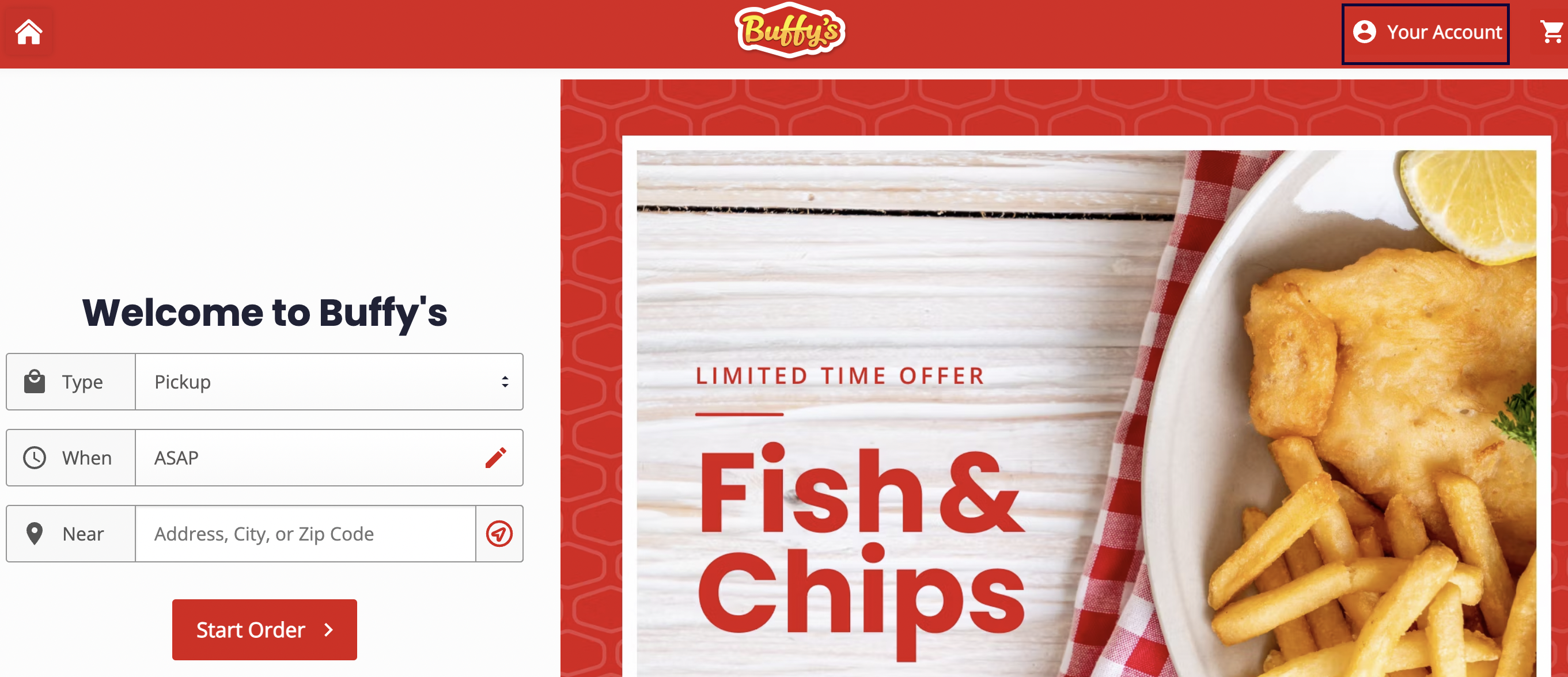
Members can login to Olo Loyalty before or after selecting the ordering location.
- Click on the “Sign In” link.
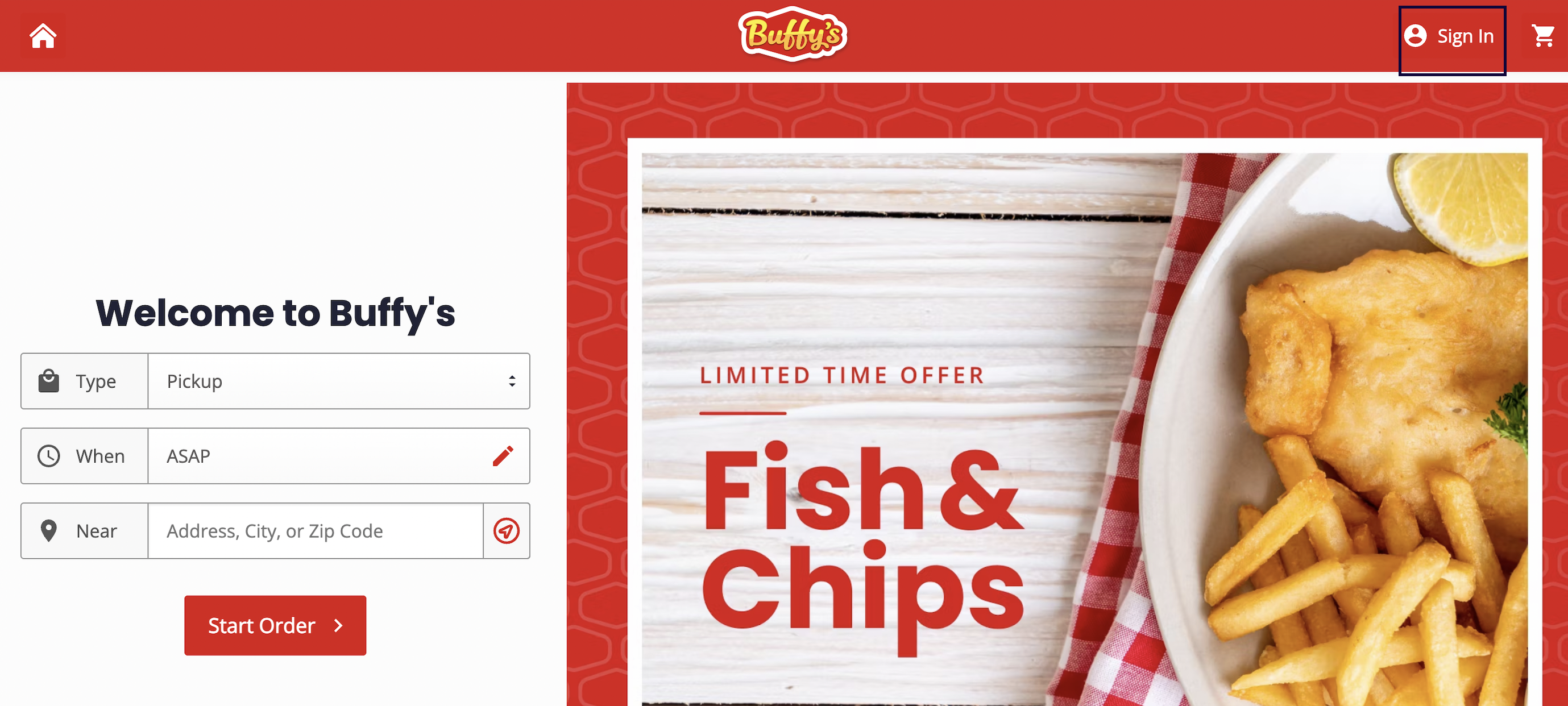
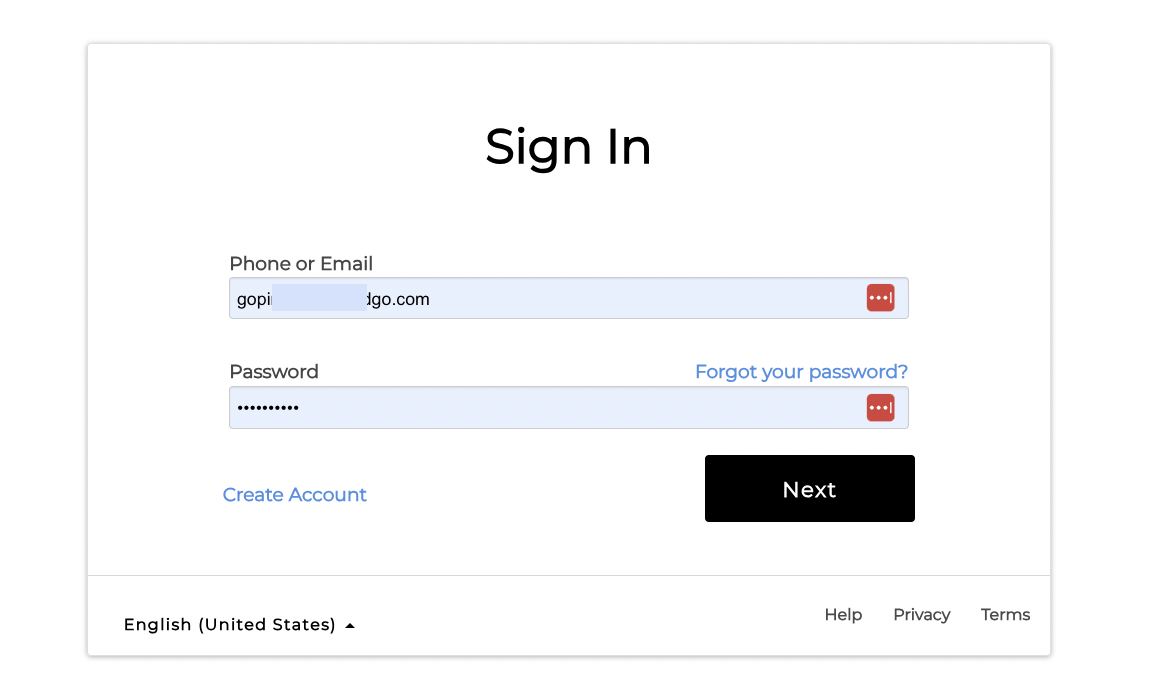
- It brings up the Olo Loyalty Login page. If the Member is already registered into Olo Loyalty, use the Olo Loyalty credentials to login.
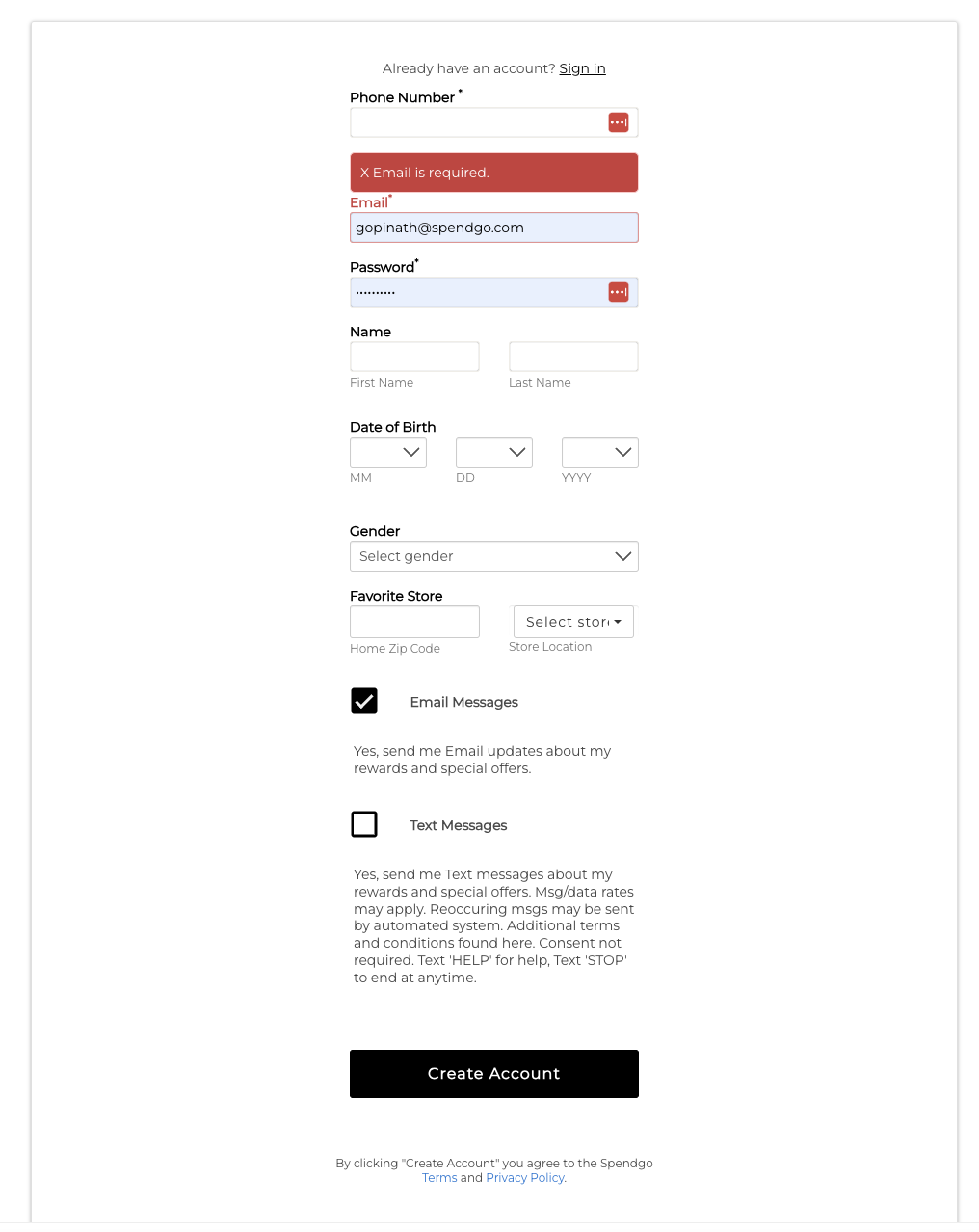
- If not a registered member, click on the “Create Account” Link on the Sign in page to bring up the registration page. Enter the details, submit and complete the email verification step to register as a new Olo Loyalty Member.
- When the login completes, the “Your Account” link shows up instead of the “Sign In” link indicating a successful login.
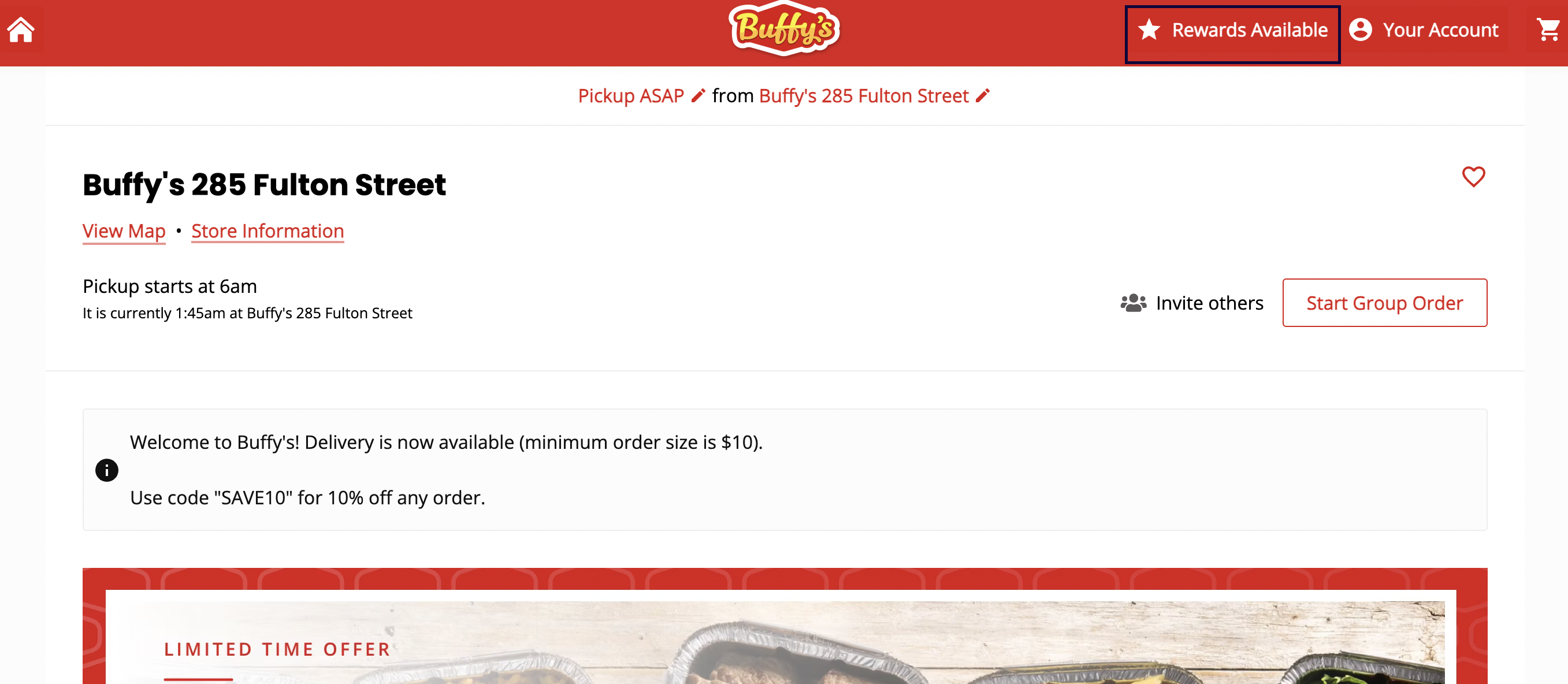
- If the login was done after selecting the ordering location, or the location is selected after the login, if the user has any available rewards at the location a “Rewards Available” link shows up.
Applying a Reward
There are two different ways to apply the reward - before or after the checkout. the order can also be completed without applying a reward.
Before Checkout:
- Add items to the cart, select the pick up/delivery options.
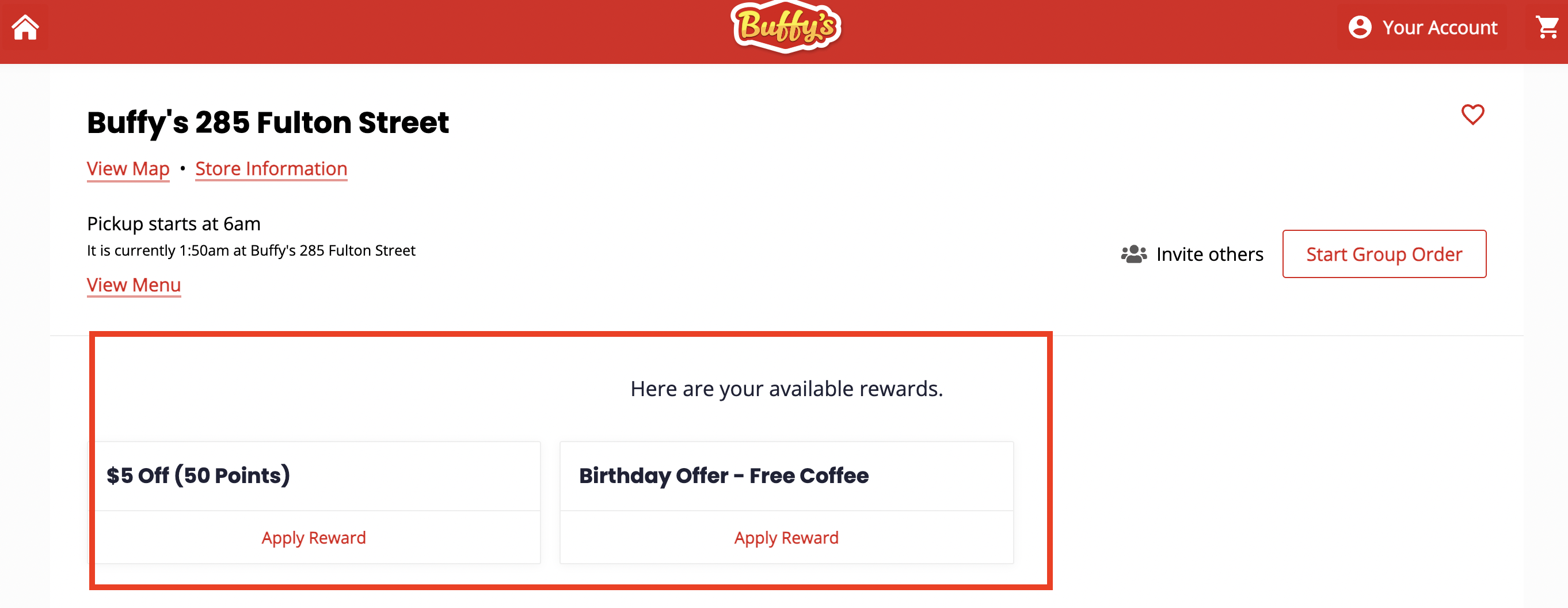
- click on “Rewards Available” link to view the list of available rewards and click on “Apply Reward” link for any of the reward of choice.
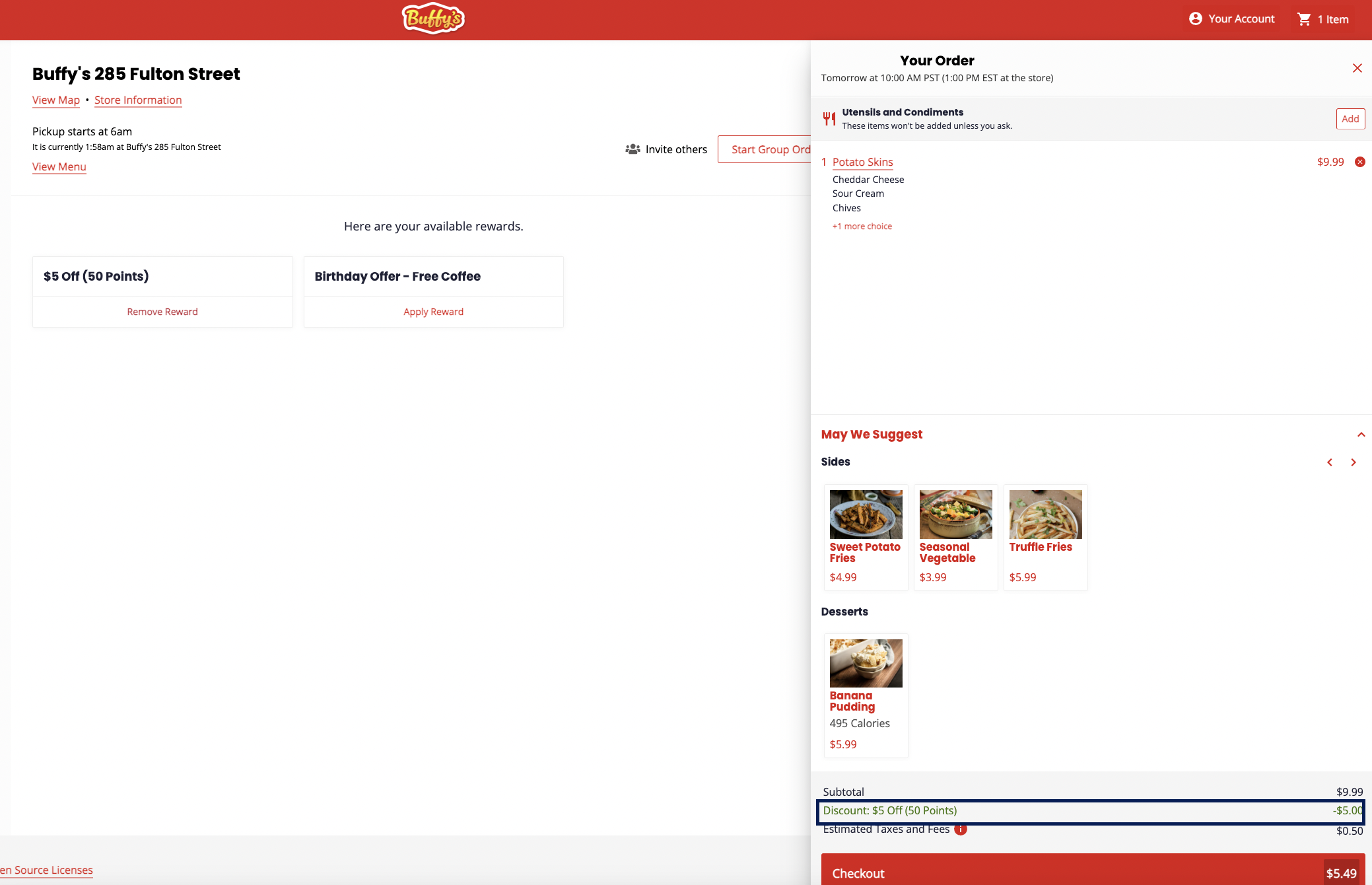
- If the reward can be applied to the order, the cart shows the applied reward.
- checkout and complete the order.
After the Checkout:
- Checkout the order
- On the checkout screen, list of available rewards are listed. Apply a reward of choice.
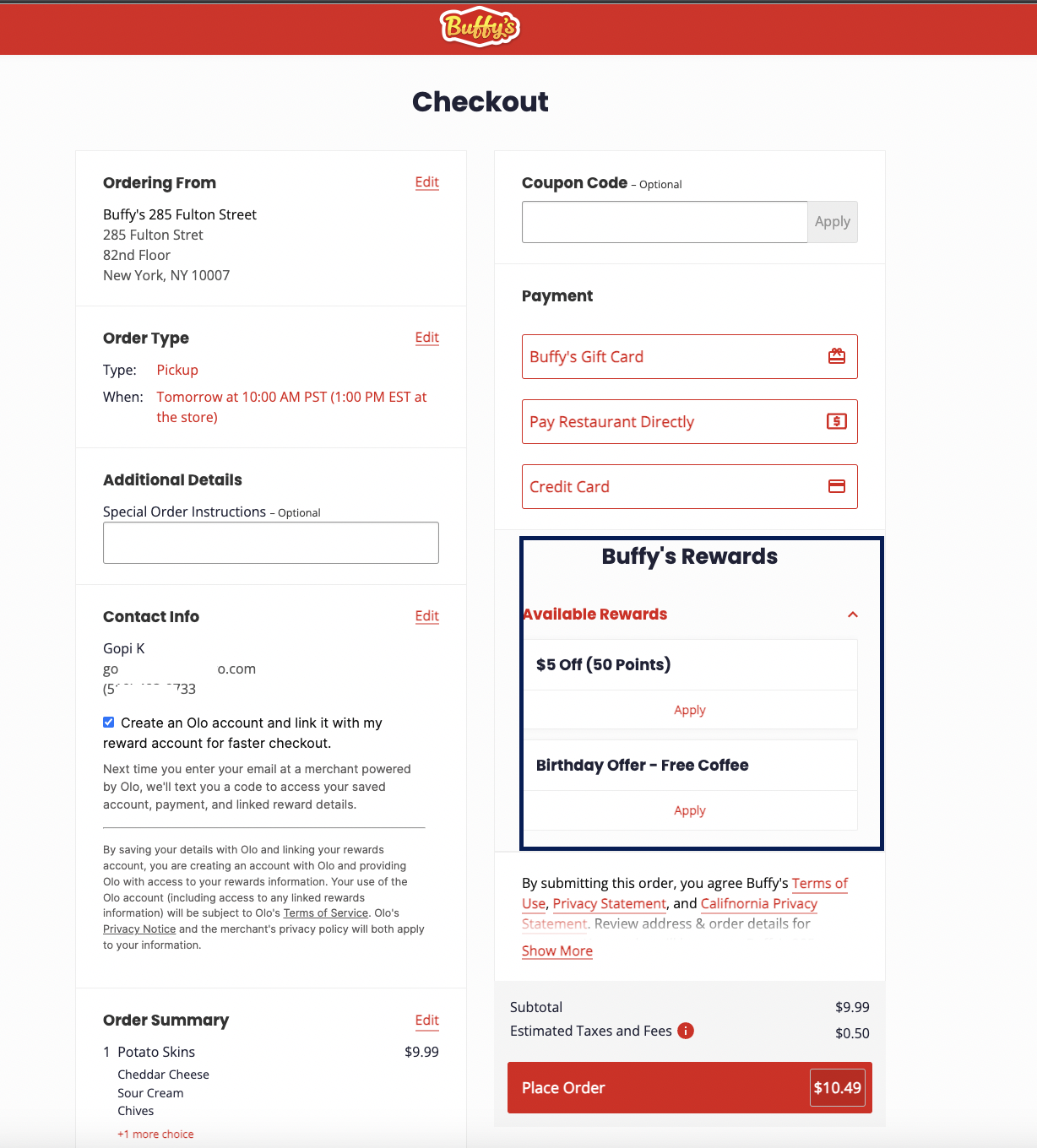
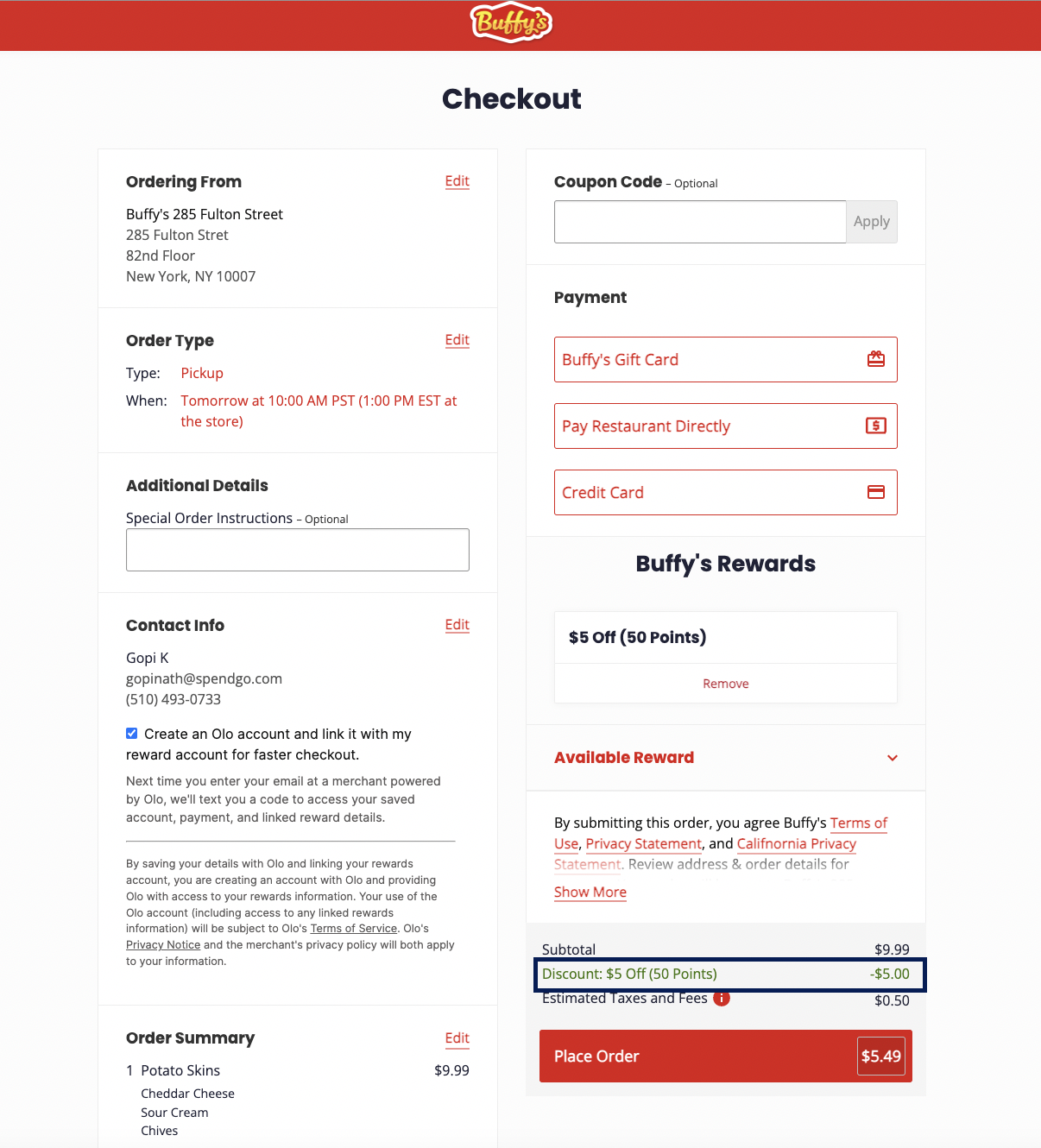
- If the reward can be applied, the cart updates to show the applied reward.
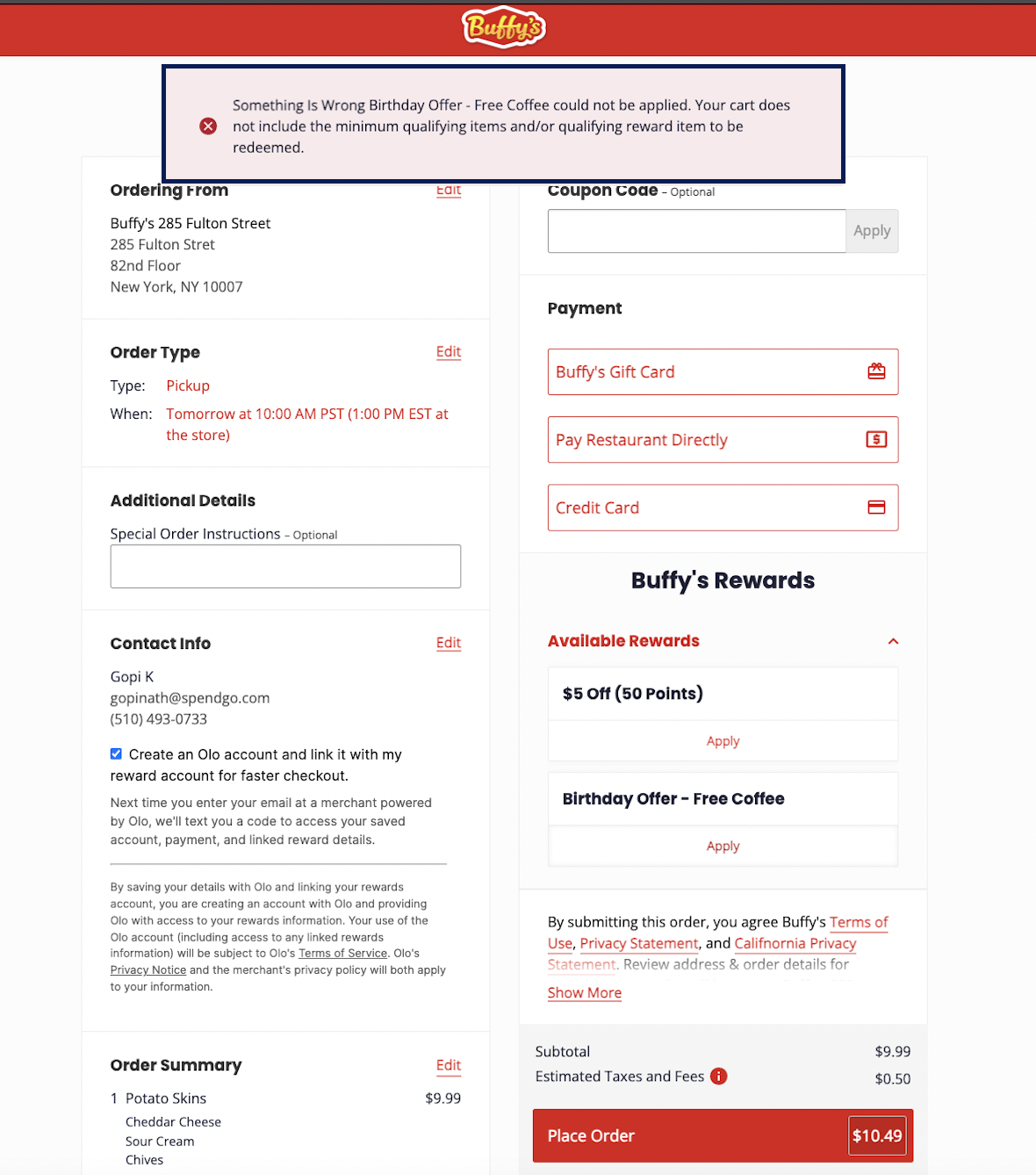
- If the reward cannot be applied to the order, a toast message pops up to indicate the error.

Please note that only one Olo Loyalty reward can be applied to the order. However, any coupon and store discount available outside of the loyalty rewards can also be applied along with the Olo Loyalty Order.
Removing or changing an applied reward
When a reward is applied on the order, the cart shows the applied reward. The other applicable rewards are not shown at this time. If a different reward needs to be applied, first remove the applied reward and then apply the different reward of choice.
Accruing points on a Guest order
If an order is placed without a login, loyalty points on the order can be claimed from the Member Portal by entering the Order Date and Order Total from the Olo Receipt.
Processing Voids/Refunds:
The Loyalty point earned or rewards applied on the order are reversed when the order is refunded from the Olo Admin Portal. Please refer to Olo’s documentation on how to cancel a scheduled or completed order.
Comments
0 comments
Article is closed for comments.