
Summary, access, and basic functionality of Loyalty Lite.
Loyalty Lite brings you fast loyalty with no integrations required. With Loyalty Lite, grow your member database, earn and redeem rewards easily. Available as an in-store kiosk or right within your browser.
Things to Know
- Only Dashboard Admin and Employee roles have access to Loyalty Lite. Please reach out to your Customer Success contact to enable Loyalty Lite for your brand. Loyalty Lite is included in Professional and Enterprise plans.
- Only Admins can edit your Loyalty Lite experience.
- Loyalty Lite is meant for in-store use and are compatible with in-store offers only.
- When using Loyalty Lite for browsers, we recommend that this is operated by your staff to prevent customers from abusing the system. If you are going to allow customers to use Loyalty Lite, please contact your Customer Success Team for additional options on how to limit the number of times a customer can earn points within a time period.
- Loyalty Lite does not offer fully itemized digital receipts. A receipt is created with the point value added as the purchase total. For example, if you add 10 points to a member’s account using Loyalty Lite, a digital receipt will be generated and associated with the member with a total of $10.00.
How to Use Loyalty Lite for Browsers
-
Navigate to Loyalty Lite.

-
Select your store.
This will appear on the receipts and attribute the points earn to the selected location.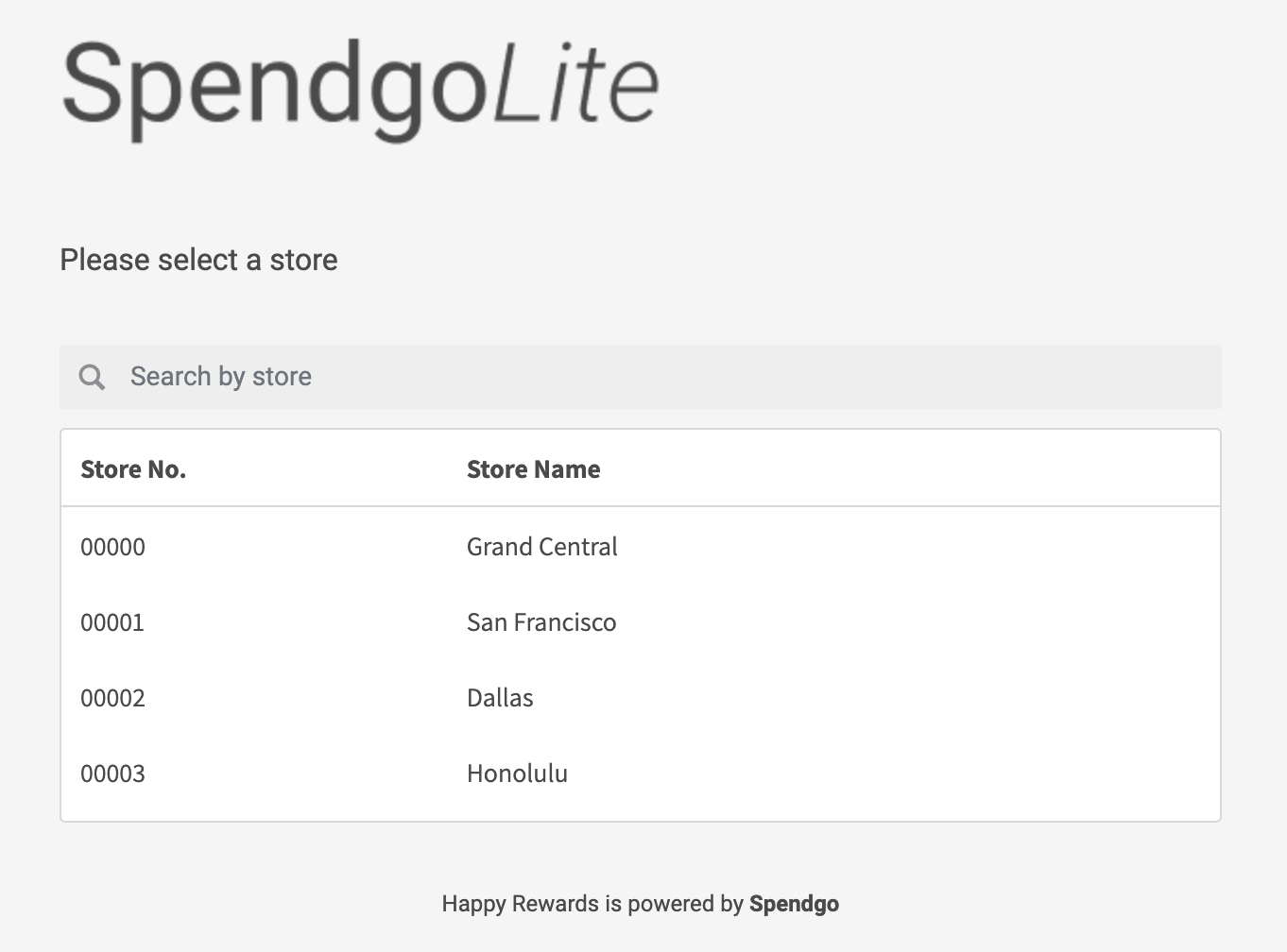
-
Enter the customer or member’s number.
If the number is a new customer, a starter member account will be created.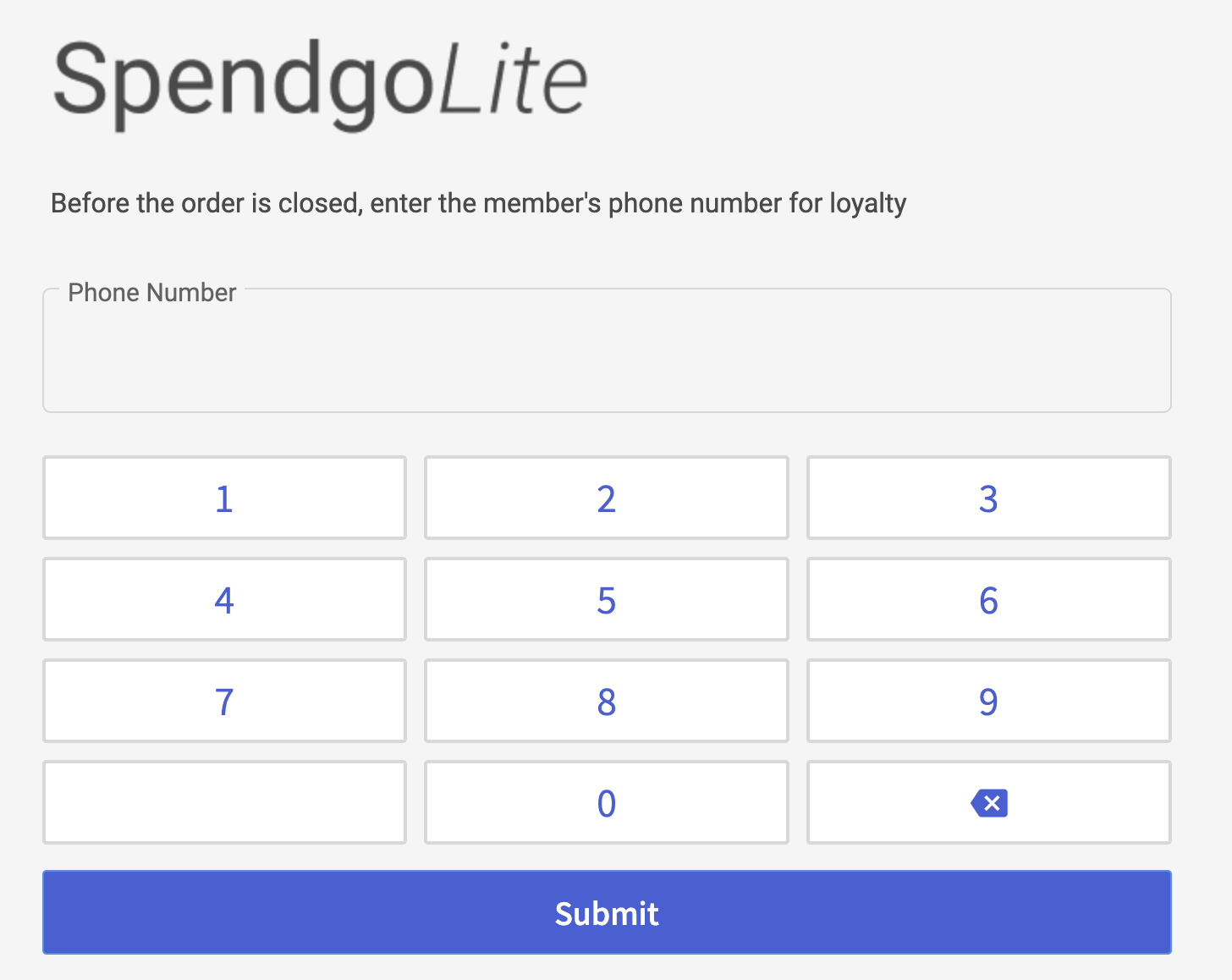
- (Optional) When the member has at least one reward, a screen will prompt with the option to select the reward to redeem. Click Use within the row of the offer you want to redeem.
-
Enter the number of points to add to member’s account or select from one of the quick add options.
Notes: Quick add presets can be configured by your Admin user along with the maximum number of points that can be earned per entry. The points screen can be bypassed and a default add point value set for every visit entry.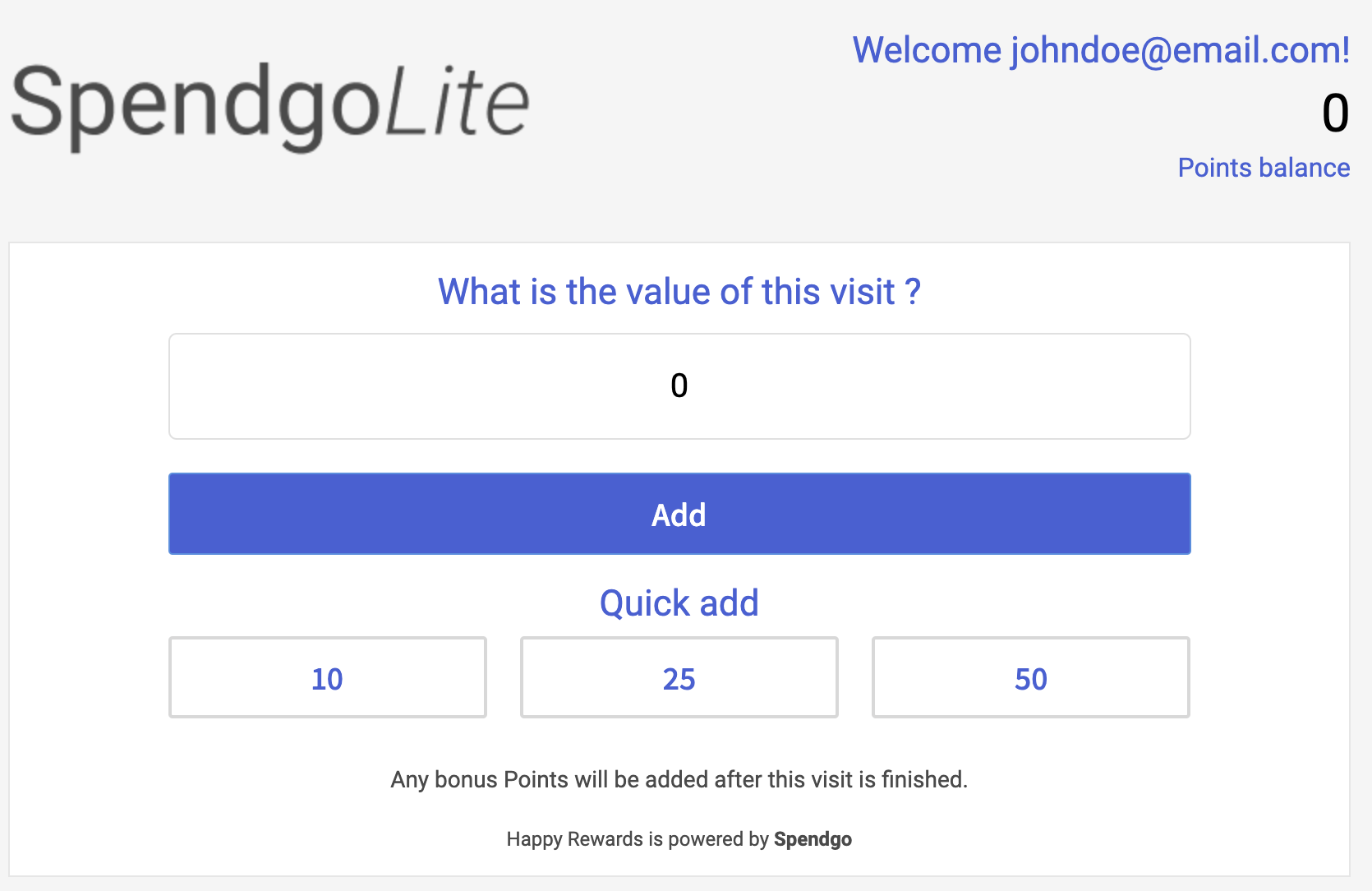
-
A summary screen will display with the points earned and the reward used on the visit. Click Finish to return to enter a new customer or member phone.
You do not need to reselect the store. The summary of points is an estimate, it does not take into account bonus points offers or any program configurations that limit the number of times a member can earn points within a time period.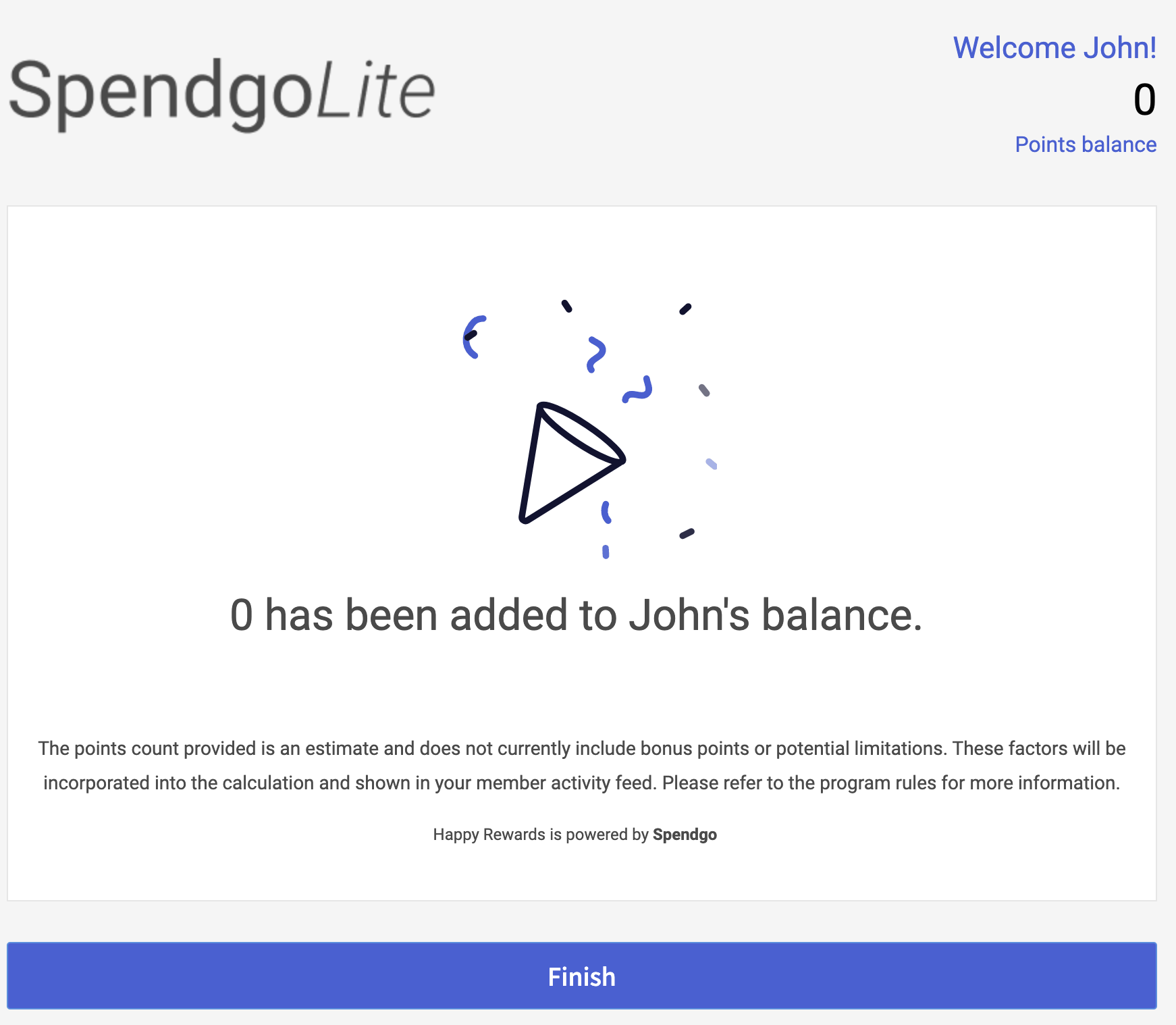
Loyalty Lite Configurations
For Browsers
In Dashboard / Settings / configure the following details for the brand’s Loyalty Lite experience:
-
Logo image
Your logo image is displayed on every Loyalty Lite screen. The image dimensions are 450px width x 100px height, PNG and JPEG are acceptable formats. To update your logo image, you may upload or provide a new image URL and this will update to all Loyalty Lite screens.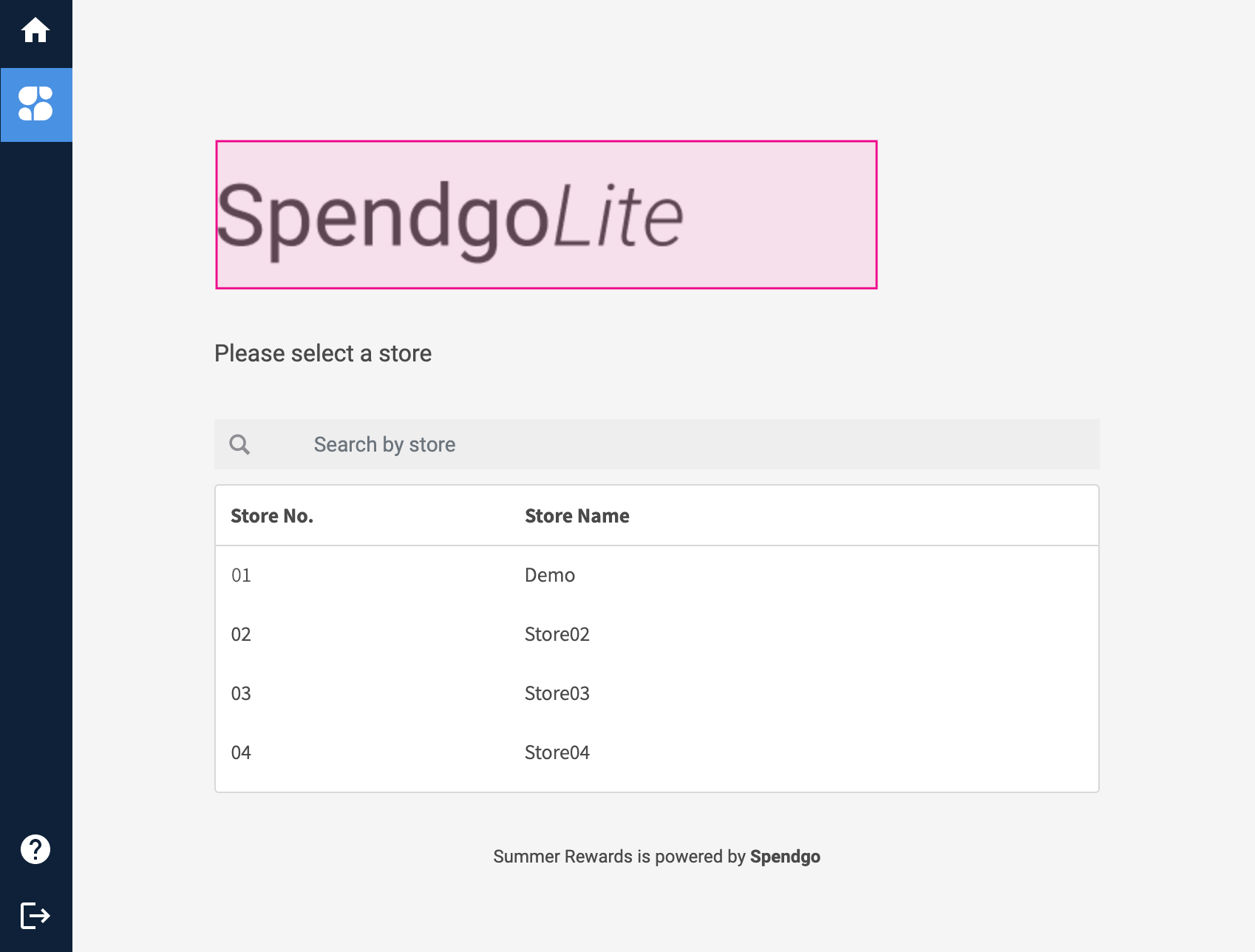
-
Enable custom points
Enabling the custom points screen allows the user to select the number of points to add on each entry. We recommend only enabling this when the experience is staff operated. Disable this screen when the experience is customer facing to prevent guests from entering their own points to add.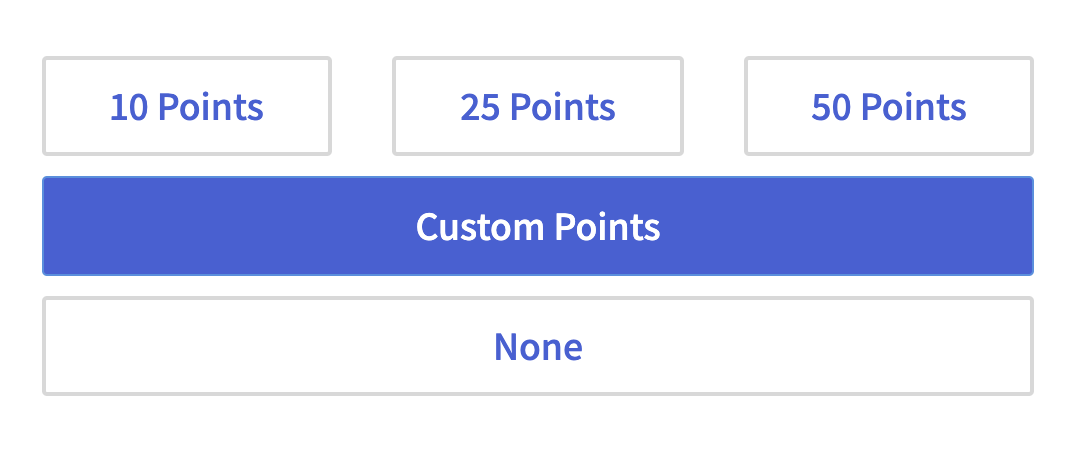
-
Preset quick points
For points based programs, you’re able to configure 3 preset buttons for the user to -
Default add value
When the custom add value screen is disabled, a default number of points can be added on each entry. In this user flow, the custom point screen will be skipped. Visit based programs can only ever add 1 visit per entry. -
Max add points
The maximum number of points that can be added in one entry. Default is 3 times the base points program threshold (i.e. if your program is $5 off every 50 points, 150 points will be your maximum custom add value). Visit based programs can only ever earn 1 visit per entry. -
Preset quick points
For points based programs, you’re able to configure 3 preset buttons for the user to

For the In-Store Kiosk experience, please reach our to your Customer Success contact for options and customizations.
Comments
0 comments
Article is closed for comments.